
Strategy ONE
Formatting derived elements
Formatting derived elements lets you highlight important or unique data as well as correctly reflect value and character formats for your derived elements. For example, you may require the values of a derived element to be displayed as a percentage.
Standard formatting of attributes and metrics lets you format all data for an attribute or metric. Formatting an attribute applies formatting to the attribute name and all of its attribute elements. Formatting a metric applies formatting to the metric name and all of its values across all attribute elements.
Formatting derived elements extends these features to allow you to format individual attribute elements as well format metric values associated with individual attribute elements.
For example, the report shown below has derived elements created for the Region attribute.
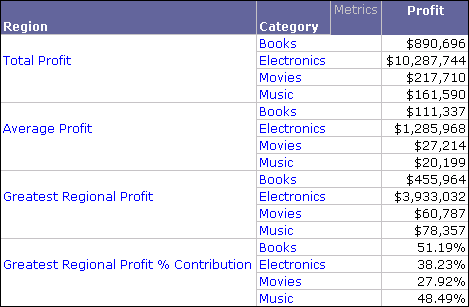
A procedure to create the report shown above is provided in Using calculations to create derived elements.
Notice that the derived element Greatest Regional Profit % Contribution uses derived element formatting to apply a percentage format to the profit values for the derived element. If you used metric formatting to apply a percentage format to profit values, the percentage format applies to all profit values across all derived elements. But this formats data incorrectly for the derived elements Total Profit, Average Profit, and Greatest Regional Profit.
In addition to applying formatting to metric values to correctly represent data for different derived elements, you can also format the names of each derived element individually. This gives you more flexibility than formatting attributes, which applies formatting to all the attribute elements. This is shown in the same sample report below with additional formatting on individual derived elements, and formatting on the Category attribute.
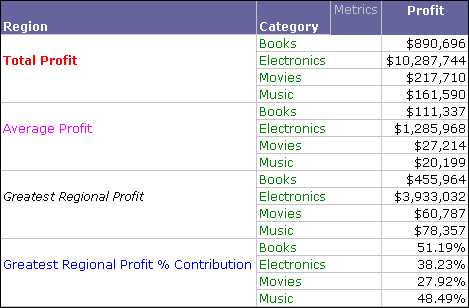
Notice that each derived element name has a different format but the attribute elements for the Category attribute all share the same format.
Formatting derived elements is only available from the Derived Elements Editor. The procedure below describes how to format derived elements.
Prerequisites
- A standard report, a report connected to an active Intelligent Cube, a Grid/Graph in a Report Services document, or a stand-alone derived element.
- This procedure also assumes you have created derived elements for the report, Grid/Graph, or stand-alone derived element.
- You have the Derived Elements Editor open. For information on accessing the Derived Elements Editor, see Accessing the Derived Elements Editor .
- You need the Define Derived Elements (Developer) and/or the Web Define Derived Elements (Web) privileges. These privileges are part of OLAP Services.
To format derived elements
- In the Derived Elements Editor, select a derived element.
-
From the toolbar, from the Change Group drop-down list, point to Format, and then select from the following options:
-
Values: Formatting the values of a derived element applies formatting to all metric values associated with a derived element. You can use this to apply value formats for derived elements that use formulas that return different types of data such as percentages, fractions, or other unique formats. In the report shown below, the derived element values for the various derived elements are highlighted with a solid red box, for the purpose of this example.
Be aware that formatting a derived element's values only applies to the metric values associated with the derived element. For example, the first four profit values are associated with the Total Profit derived element.
-
Headers: Formatting the headers of a derived element applies formatting to the derived element name. You can use this to highlight or visually distinguish the various derived elements on the report.
In the report shown below, the derived element headers for the various derived elements are highlighted with a dashed black box, for the purpose of this example. Be aware that formatting a derived element's header only applies to the derived element you are formatting, not all derived elements for an attribute.
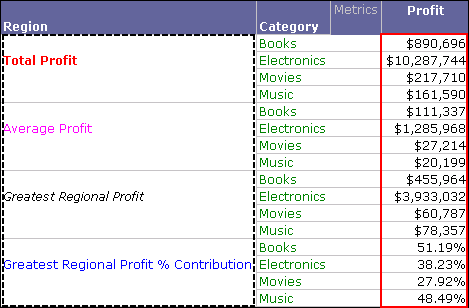
The Format Cells dialog box opens.
-
- Apply number, alignment, font, border, and background formatting for the derived element values or headers. For steps to use the Format Cells dialog box, click the Help on the Format Cells dialog box.
- When you are finished formatting derived elements headers or values, click OK. You are returned to the Derived Elements Editor.
- Click OK.