
Strategy ONE
Filtering data based on metrics
Using view filters based on metrics, you can view a subset of report data that focuses on the data values and ranges you are interested in. Narrowing the focus of a report to the data that is of interest of you enables another level of report analysis that can highlight business trends and figures.
For example, review the 16 View Filter - Metric Qualification report from the Tutorial project, shown below.
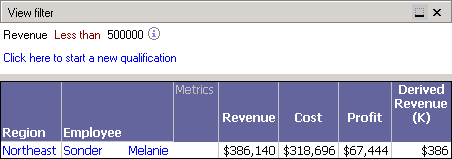
This report returns revenue, cost, and profit data for employees, while also displaying the region the employee is in. The view filter restricts the report results to only return data for those employees who generated less than $500,000 in revenue. This reduces the large number of employee results to a smaller set of employees that are generating a relatively low amount of revenue.
When creating metric qualifications in a view filter, you can use various logical and mathematical operators. You can use any of the following operators in metric qualifications. These are described in detail in Appendix A, Logical and Mathematical Operators for Filtering in the Advanced Reporting Help:
- Exactly
- Different from
- Greater than
- Less than
- Greater than or equal to
- Less than or equal to
- Between
- Not Between
- Is Null
- Is Not Null
Once you select an operator, you can either type in a value or select a metric to return the value to qualify on.
You can also qualify on the rank or percentage of a metric value for a given report. For example, you can restrict the report shown above to display all data for employees in the bottom 20% of revenue. For information on using view filters to restrict report results based on ranks or percentages of metric data, see Filtering metrics on rank and percentage ranges.
The steps below show you how to create a view filter with a metric qualification, as well as how the example scenario above was created.
Prerequisites
- You need the Use View Filter Editor (Developer) and/or the Web Use View Filter Editor (Web) privileges. These privileges are part of OLAP Services.
To create a view filter with a metric qualification
-
Log in to a project in MicroStrategy Developer. For steps to create a view filter in MicroStrategy Web, see the Strategy Web Help.
For the example scenario, log in to the MicroStrategy Tutorial project.
-
Run the report in Grid View.
For the example scenario, browse to and run the 16 View Filter - Metric Qualification report.
- If the View Filter area is not displayed, from the View menu, select View Filter.
-
In the View Filter area, click Click here to start a new qualification.
You can also create a new view filter qualification on a metric by right-clicking a metric, pointing to Filter On, and selecting Add Condition.
-
Click Field, and then select a metric.
For the example scenario, select Revenue.
-
Click Operator, and then select an operator.
For the example scenario, select Less than.
-
Click Value, and then select Type a value, or select a metric to return the value to qualify on.
For the example scenario, select Type a value, and then type 500000.
- If the Auto-Apply Changes check box is cleared, click Apply to apply the view filter to the report.
The report is updated. The report data is restricted as defined by the view filter. If you define multiple view filter qualifications at the same output level, you can modify the logical operator used to join the qualifications, as described in Combining view filter qualifications with operators.
Filtering based on metric-to-metric comparisons
You can compare values of two metrics to filter the results of a report by creating metric-to-metric qualifications. This type of metric qualification can provide analysis such as comparing metric values over time.
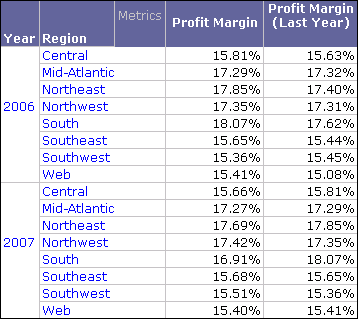
For example, you can create a report that restricts the data to profit margins greater than last year's profit margins. The report shown below includes Year, Region, Profit Margin, and Profit Margin (Last Year), and was created in the MicroStrategy Tutorial project.
You can create a view filter to then restrict the data on the report to profit margins greater than last year's profit margins. The metric-to-metric qualification and resulting report are shown below.
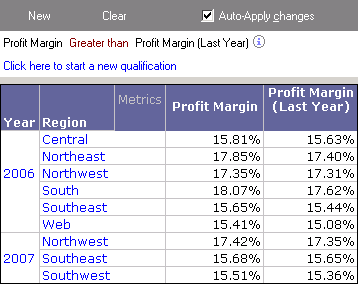
You can now review when regions had increases in profit margins. For example, from the report above you can determine that the Northwest and Southeast regions have shown increases in profit margins from 2006 to 2007.
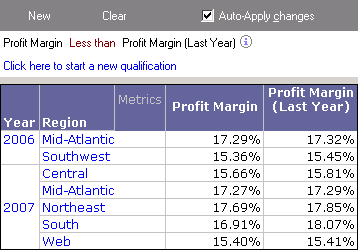
You can take advantage of view filters' ability to update the report results without having to re-execute SQL against the data warehouse to perform further quick analysis. For example, you can switch the operator from Greater Than to Less Than to quickly switch to a view of data for profit margins that are less than the previous year's profit margins. The metric-to-metric qualification in the view filter and resulting report are shown below.
The steps below show you how to create a view filter with a metric-to-metric qualification, as well as how the example scenario above was created.
To create a view filter with a metric-to-metric qualification
-
Log in to a project in MicroStrategy Developer. For steps to create a view filter in MicroStrategy Web, see the Strategy Web Help.
For the example scenario, log in to the MicroStrategy Tutorial project.
-
Run the report in Grid View.
For the example scenario, create a report with Year, Region, and Profit Margin on the report. Create a metric that returns a transformation of last year's profit margin values, and name the metric Profit Margin (Last Year). For details to create a transformation metric, see the Advanced Reporting Help.
-
Choose View > View Filter > Click here to start a new qualification.
You can also create a new view filter qualification on a metric by right-clicking a metric, pointing to Filter On, and selecting Add Condition.
-
Click Field, and then select a metric.
For the example scenario, select Profit Margin.
-
Click Operator, and then select an operator.
For the example scenario, select Greater than.
-
Click Value, and then select a metric to return the value to qualify on.
For the example scenario, select Profit Margin (Last Year).
- Click Apply to apply the view filter to the report.
The report is updated. The report data is restricted as defined by the view filter. If you define multiple view filter qualifications at the same output level, you can modify the logical operator used to join the qualifications, as described in Combining view filter qualifications with operators.
Filtering metrics on rank and percentage ranges
In addition to restricting report results based on metric qualifications, you can also restrict report results based on the rank or percentage range of a metric value for a given report. This enables you to display reports with data such as products in the top 40% of profit. You could also create a report to return the top 10 employees in terms of average performance score.
It is important to understand the operators that are available for these types of view filters. When creating view filter qualifications on the rank or percentage ranges of metric values, you can use the following mathematical and logical operators, which are described as they relate to rank and percent metric qualifications in the table below:
In Developer, all of the operators listed below can be used to create rank and percent metric qualifications as part of a view filter. Rank and percent metric qualifications using any of these operators can be viewed in MicroStrategy Web. However, only the Is Highest (referred to as Highest or Highest% in Web) and Is Lowest (referred to as Lowest or Lowest% in Web) can be used to create or modify rank and percent metric qualifications in Web.
| Operator | Functionality and considerations |
|
Exactly |
Identifies a specific value, as described below: For rank ranges, this restricts a report to data for only one specific rank. For example, a rank range defined as Exactly 1 returns data for only the highest value of a given metric. This scenario produces the same results as using the Is Highest operator described below in this table. For percent ranges, this operator has limited value. This is because it restricts a report to data that is exactly a specific percentage. Percentages are not always integer values and therefore it is difficult to predict what percentage would return meaningful results. |
|
Different from |
Identifies values that are other than the specific value indicated: For rank ranges, this restricts a report to data for only ranks that are different from the given value. For example, a rank range defined as different from 1 returns data for all ranks except the highest value of a given metric. For percent ranges, this operator has limited value. This is because it restricts a report to data that is different from a specific percentage. Percentages are not always integer values and therefore it is difficult to predict what percentage would return meaningful results. In most cases, using this operator with percent metric qualifications does not restrict any data. |
|
Between |
Identifies values in a range that has both a lower and an upper limit: For rank ranges, you can provide a lower and upper rank limit. For example, you can display only ranks 20 through 40. For percent ranges, you can provide a lower and upper percentage limit. For example, you can display only data with metric values between 20% and 40% of all values. |
|
Not Between |
Identifies values in a range that has both a lower and an upper limit. Data is restricted for any values outside of this range: For rank ranges, you can provide a lower and upper rank limit. For example, you can display only ranks not between 20 through 40. This displays ranks 1 through 19 and 41 and down. For percent ranges, you can provide a lower and upper percentage limit. For example, you can display only data with metric values not between 20% and 40% of all values. This displays data with metric values between 1% and 19% and between 41% and 100%. |
|
Identifies values that are null. Using the rank or percent metric qualifications is not necessary with this operator. To return all data where metric values are Null, you can simply create a view filter metric qualification on the metric that uses the Is Null function. |
|
|
Is Not Null |
Identifies values that are not null. Using the rank or percent metric qualifications is not necessary with this operator. To return all data where metric values are not null, you can simply create a view filter metric qualification on the metric that uses the Is Not Null function. |
|
Top |
Identifies the topmost value range in a given set: For rank ranges, you can provide a topmost rank range. For example, you can display only data within the top 20 rank range. For percentage ranges, you can provide a topmost percentage range. For example, you can display only data within the top 20% range. |
|
Bottom |
Identifies the lowest set of values in a given set: For rank ranges, you can provide a lowest rank range. For example, you can display only data within the bottom 20 rank range. For percentage ranges, you can provide a lowest percentage range. For example, you can display only data within the bottom 20% range. |
|
Exclude top |
Identifies a value range that is not in the topmost value range in a given set: For rank ranges, you can provide a topmost rank range to exclude from the report results. For example, you can display only data that excludes the top 20 rank range. For percentage ranges, you can provide a topmost percentage range to exclude from the report results. For example, you can display only data that excludes the top 20% range. |
|
Exclude bottom |
Identifies a value range that is not in the lowest set of values in a given set: For rank ranges, you can provide a lowest rank range to exclude from the report results. For example, you can display only data that excludes the bottom 20 rank range. For percentage ranges, you can provide a lowest percentage range to exclude from the report results. For example, you can display only data that excludes the bottom 20% range. |
|
Is Highest |
Identifies the highest value. This operator should only be used with rank ranges. For rank ranges, this restricts report results to display data for only the highest value of a given metric. |
|
Is Lowest |
Identifies the lowest value. This operator should only be used with rank ranges. For rank ranges, this restricts report results to display data for only the lowest value of a given metric. |
Creating a view filter on a rank range of metric values
You can create a view filter that restricts report results based on a rank range of metric values for a given report. This can allow you to view analysis such as the bottom 20 products in terms of profit margin. Further analysis can be explored on this rank range of products to determine how to increase profit margins for these products, or decide which products should be discontinued.
This type of report and analysis can be created in the MicroStrategy Tutorial project. You first create a report with Item, Revenue, Profit, and Profit Margin on the report, as shown below.
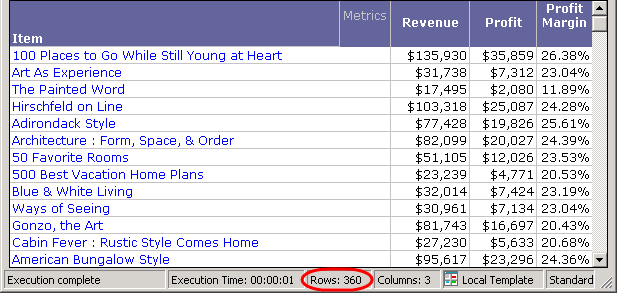
Only a subset of the report results are shown above, but notice that data for 360 items have been returned. To narrow the analysis of the report, you create a view filter to restrict the report results to the bottom 20 products in terms of profit margin. The view filter and resulting report are shown below.
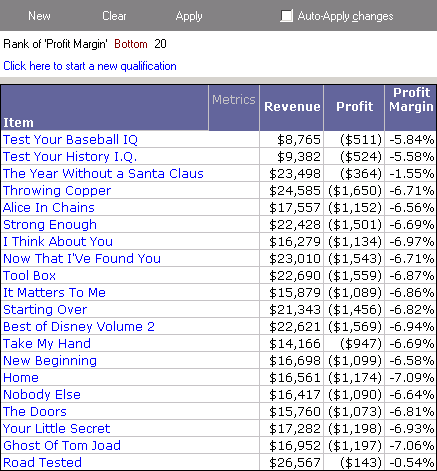
With this updated report, you can now perform further analysis on each item to determine a strategy to improve your profit margins.
Notice that the view filter above uses the Bottom operator.
The steps below show you how to create a view filter with a rank metric qualification, as well as how the example scenario above was created.
Prerequisites
- You need the Use View Filter Editor (Developer) and/or the Web Use View Filter Editor (Web) privileges. These privileges are part of OLAP Services.
To create a view filter with a rank metric qualification
-
Log in to a project in MicroStrategy Developer. For steps to create a view filter in MicroStrategy Web, see the Strategy Web Help.
For the example scenario, log in to the MicroStrategy Tutorial project.
-
Run a report in Grid View.
For the example scenario, create a report with Item, Revenue, Profit, and Profit Margin on the report, as shown in Creating a view filter on a rank range of metric values.
- If the View Filter area is not displayed, from the View menu, select View Filter.
- In the View Filter area, click Click here to start a new qualification.
-
To create a rank metric qualification, click Field, point to Rank, and then select a metric.
For the example scenario, select Profit Margin.
-
Click Operator, and then select an operator.
For the example scenario, select Bottom.
-
Click Value, and then select Type a value. Type the value for the rank number you want to restrict data to.
For the example scenario, type 20.
- If the Auto-Apply Changes check box is cleared, click Apply to apply the view filter to the report.
The report is updated. The report data is restricted as defined by the view filter. If you define multiple view filter qualifications at the same output level, you can modify the logical operator used to join the qualifications, as described in Combining view filter qualifications with operators.
Creating a view filter on a percentage range of metric values
You can create view filters that restrict report results based on a percent range of metric values for a given report. This can allow you to view analysis such as employees between 30% and 60% of tenure length with the company. You can then explore performance metrics within this percentage range of employees and determine where promotions and other actions are necessary.
For example, you create a report with Year, Region, Category, Revenue, and Profit on the report, with Category not displayed on the report grid, as shown below.
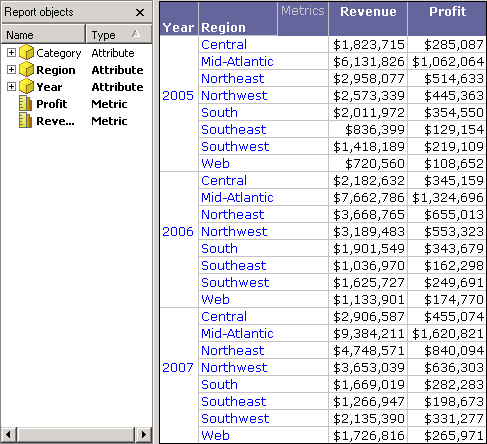
You decide to analyze this report to show only the data that is within the top 10% of profit. The view filter and resulting report are shown below.
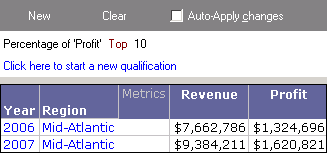
With this analysis, you can now perform further analysis to determine why profit was at its highest during these years and within these regions.
Notice that the view filter above uses the Top operator.
The steps below show you how to create a view filter with a percent metric qualification, as well as how the example scenario above was created.
To create a view filter with a percent metric qualification
-
Log in to a project in MicroStrategy Developer. For steps to create a view filter in MicroStrategy Web, see the MicroStrategy Web Help.
For the example scenario, log in to the MicroStrategy Tutorial project.
-
Run the report in Grid View.
For the example scenario, create a report with Year, Region, Category, Revenue, and Profit on the report with Category not displayed on the report grid.
- Choose View > View Filter > Click here to start a new qualification.
-
To create a percent metric qualification, click Field, point to Percent, and then select a metric.
For the example scenario, select Profit.
-
Click Operator, and then select an operator.
For the example scenario, select Top.
-
Click Value, and then select Type a value.Type the value for the rank number you want to restrict data to.
For the example scenario, type 20.
Valid numbers for percent metric qualifications are 1 to 100.
- If the Auto-Apply Changes check box is cleared, click Apply to apply the view filter to the report.
The report is updated. The report data is restricted as defined by the view filter. Further analysis on this report is performed to demonstrate how you can change the level of evaluation for view filter metric qualifications.
If you define multiple view filter qualifications at the same output level, you can modify the logical operator used to join the qualifications, as described in Combining view filter qualifications with operators.
Evaluating qualifications at the report or grid level
When a metric qualification in a view filter is evaluated by the system, the evaluation can be performed for all data that is returned for the report, or only the view of data that is currently available on the report grid. These two options can produce different report results when using the OLAP Services feature called dynamic aggregation.
Dynamic aggregation enables you to remove attributes from the report grid, but keep them as part of the report definition. The action of moving attributes on or off of the report grid aggregates the metric values at the new level of the report. For information on dynamic aggregation, see Dynamic Aggregation.
By default, metric qualifications in a view filter are evaluated at the level of data that is available on the report grid. This means that any attributes that are included in the Report Objects pane but not on the report grid are not used to determine the level of the metric qualification.
For example, you create a report with Year, Region, Category, Revenue, and Profit on the report, with Category not displayed on the report grid, as shown below.
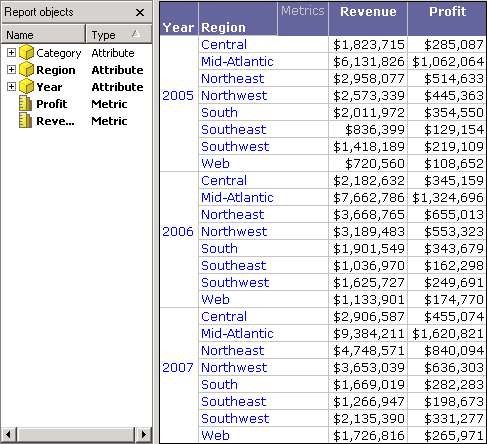
This report can be created in the MicroStrategy Tutorial project.
You can use dynamic aggregation to drag and drop the Category attribute from the report grid to the Report Objects pane. This allows Category to affect the report level without being displayed on the grid.
You decide to analyze this report to show only the data that is within the top 10% of profit. The view filter and resulting report are shown below.
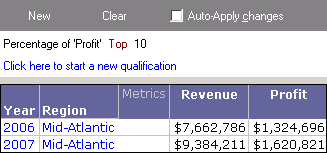
Notice that only two rows of data are returned. The metric qualification has been evaluated at the level of the report grid, which is Year and Region. This gives you a view of data within the top 10% of profit for the data displayed on the report grid.
However, this report also includes the Category attribute in the Report Objects pane. Since this attribute is available on the report, you can also view data within the top 10% of profit at the Category, Region, and Year level. Evaluating the metric qualification at this level returns the report results shown below.
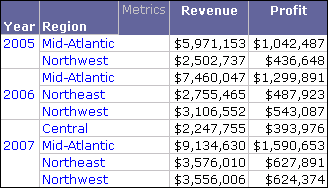
Notice that there are many more rows of data that are within the top 10% of profit. This is because Category is now included in the calculation of the metric qualification. While this evaluation option for metric qualifications returns a different type of analysis, the same analysis can be achieved by simply adding all attributes from the Report Objects pane onto the report grid, so that all attributes are then present on the report grid.
The following information should be taken into consideration when choosing an evaluation level for a metric qualification. This information assumes you are familiar with report levels as explained in the Advanced Reporting Help:
-
Evaluation at the report grid level: Evaluating metric qualifications at the level present on the report grid allows the view filter to dynamically display analysis that reflects the data available on the report grid. If all attributes are on the report grid, then this level is used to calculate the metric qualification. Additionally, anytime an attribute is moved between the Report Objects pane and the report grid, the view filter dynamically recalculates the metric qualification to reflect the new level of data on the report grid.
You can join metric qualifications evaluated at the grid level to any other metric qualifications evaluated at the grid with logical operators, as described in Combining view filter qualifications with operators.
If derived metrics are also on this report, evaluating metric qualifications at the grid level also causes the metric qualifications to be evaluated after derived metrics by default. This means that these qualifications filter the results of any derived metric calculations. For more information, see View filter effects on derived metrics.
-
Evaluation at the report level: Evaluating metric qualifications at the report level, regardless of what attributes are on the report grid or the Report Objects pane, provides a consistent level of analysis during dynamic aggregation.
You can also join metric qualifications evaluated at the report level to attribute qualifications or other metric qualifications evaluated at the report level with logical operators, as described in Combining view filter qualifications with operators.
If derived metrics are also on this report, evaluating metric qualifications at the report level also causes the metric qualifications to be evaluated before derived metrics by default. This means that these qualifications filter data before any derived metric calculations are applied. For more information, see View filter effects on derived metrics.
- Metric-to-metric qualifications: The evaluation level of metric-to-metric qualifications cannot be modified. All metric-to-metric qualifications are evaluated at the report level.
The steps below show you how to modify the evaluation of metric qualifications in a view filter.
Prerequisites
-
A report with a metric qualification in the view filter that is not a metric-to-metric qualification.
-
To observe how this modification can affect report results, the report should also have some attributes in the Report Objects pane, but not on the report grid.
You cannot modify the evaluation level of metric-to-metric qualifications. All metric-to-metric qualifications are evaluated at the report level.
To modify the evaluation level of metric qualifications in a view filter
- Log in to a project in MicroStrategy Developer. For steps to modify the evaluation level of metric qualifications in a view filter in MicroStrategy Web, see the Strategy Web Help.
- Run the report in Grid View.
- Choose View > View Filter.
-
In the View Filter area, right-click a metric qualification and select one of the following options, which you can switch between:
- Apply Condition at the Grid Level (default): Evaluates the metric qualification only for the attributes included on the report grid. Attributes in the Report Objects pane but not on the report grid are not included in the metric qualification evaluation.
- Apply Condition at the {attributes in Report Objects} Level: Evaluates the metric qualification for all attributes included in the Report Objects pane, regardless of whether they are displayed on the report grid.
You can choose different evaluation options for separate metric qualifications in the same view filter.
- Select Apply.
The report is updated. The report data is restricted as defined by the view filter.