
Strategy One
Connect to Microsoft Dynamics 365 With User Level OAuth Authentication
Strategy ships the Microsoft Dynamics 365 JDBC driver to connect Microsoft Dynamics 365 as a data source using the User Level OAuth authentication method. User Level OAuth authentication is supported by Strategy Web and Strategy Workstation in Server Mode.
Data sources created using User Level OAuth will have access to the Microsoft Dynamics 365 data available only for authenticated users.
- Web
- Workstation
-
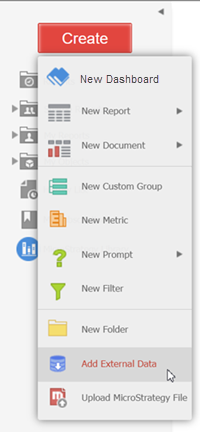
In Strategy Web, click on the Create button > Add External Data.
-
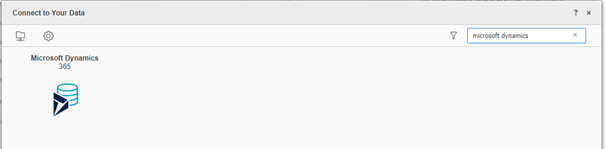
Find and select the Microsoft Dynamics 365 connector from the data source list.
-
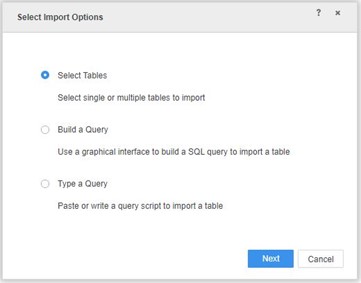
In the Select Import Options dialog, select an option and click Next.
-
Next to Data Sources, click New Data Source
 to add a new connection.
-
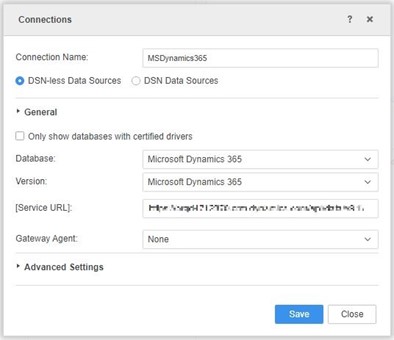
In the Data Source dialog, complete the required fields.
To obtain the required parameters for User Level OAuth authentication, refer to Required Parameters for Authentication in Microsoft Dynamics 365
 .
. - Click Save.
-
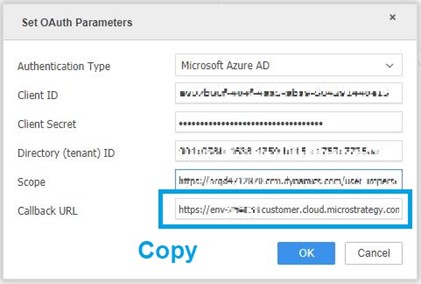
In the OAuth Properties dialog, complete the required fields.
To obtain the required parameters for User Level OAuth authentication, refer to Required Parameters for Authentication in Microsoft Dynamics 365
-
Copy the Callback URL, as it is needed to whitelist in Entra ID (formerly Azure AD).
- Click OK to save the database connection.
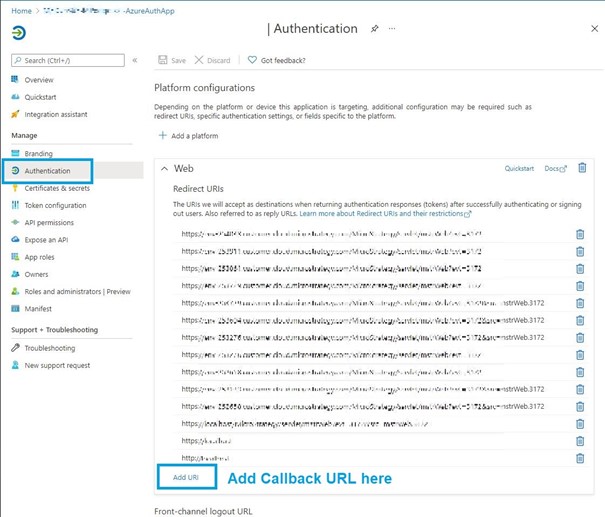
- Access the application in Entra ID.
-
Go to Application > Web > Redirect URIs and click Add URI.
-
Click on the newly created database instance.
The Entra ID authentication dialog appears.
Your browser must allow pop-ups.
-
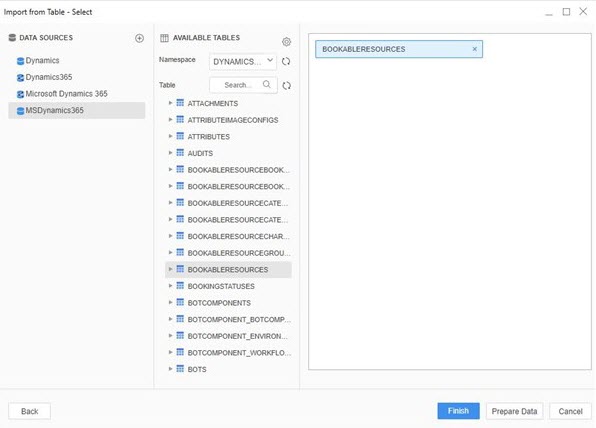
In the Import dialog and under Data Sources, select the DYNAMICS365 namespace. Other namespaces contain system tables.
After authenticating, the catalog is populated.
-
In Workstation, next to Datasets, click Create a new dataset
and choose a project. 
- Choose an environment and project.
-
Find and select the Microsoft Dynamics 365 connector from the data source list.
-
In the Select Import Options dialog, select an option and click Next.
-
Next to Data Sources, click New Data Source
to add a new connection.
-
In the Data Source dialog, complete the required fields.
To obtain the required parameters for User Level OAuth authentication, refer to Required Parameters for Authentication in Microsoft Dynamics 365
. - Click Save.
-
In the OAuth Properties dialog, complete the required fields.
To obtain the required parameters for User Level OAuth authentication, refer to Required Parameters for Authentication in Microsoft Dynamics 365
-
Copy the Callback URL, as it is needed to whitelist in Entra ID.
- Click OK to save the database connection.
- Access the application in Entra ID.
-
Go to Application > Web > Redirect URIs and click Add URI.
-
Click on the newly created database instance.
The Entra ID authentication dialog appears.
Your browser must allow pop-ups.
-
In the Import dialog and under Data Sources, select the DYNAMICS365 namespace. Other namespaces contain system tables.
After authenticating, the catalog is populated.
Related Articles
KB485063: Troubleshooting the Strategy Dynamics 365 connector in Strategy