
Strategy One
Dremio
Starting in Strategy One (December 2024), the Dremio driver is shipped out-of-the-box.
Strategy 2021 Update 9 supports connecting to Dremio in Workstation.
There is no support for connecting to Dremio in Managed Cloud Government (MCG).
Install the Driver
You only need to perform the following steps if you are using a version prior to MicroStrategy ONE (December 2024).
To complete data source set up, you need to install some additional components.
- Navigate to the driver provider and download the latest JDBC driver.
- Save the driver file in the JDBC installation locations depending on your system:
- Windows: C:\Program Files (x86)\Common Files\MicroStrategy\JDBC
- Linux: /opt/mstr/MicroStrategy/install/JDBC
- Workstation
- Library
- Connect to your environment.
- In the Navigation pane, click
 , next to Data Sources.
 - Find and select the Dremio connector from the data source list.
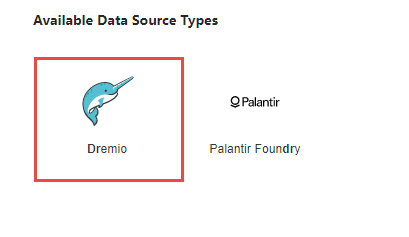
- Enter a Name.
- Expand the Default Database Connection drop-down and click Add New Database Connection.
- Enter a Name, Host Name, and Port Number.
- Expand the Default Database Login drop-down and click Add New Database Login.
- Enter your Username and Password.
- Click Save.
- Choose the project that will use the data source and click Save.
- In the toolbar, click Help, and ensure Enable New Data Import Experience is enabled.
If you want to choose the schema, you can add the schema parameter in the Advanced tab. You can also add other connection parameters in the Advanced tab. You can find supported parameters in the Dremio documentation.
Create a Data Import Cube
Best practice to create a Data Import Cube against Dremio is to use Workstation.
- In the toolbar, click Help, and ensure Enable New Data Import Experience is enabled.
- In the Navigation pane, click , next to Datasets.
- Select an Environment and Project.
- Choose the Data Import Cube dataset.
- Click Ok.
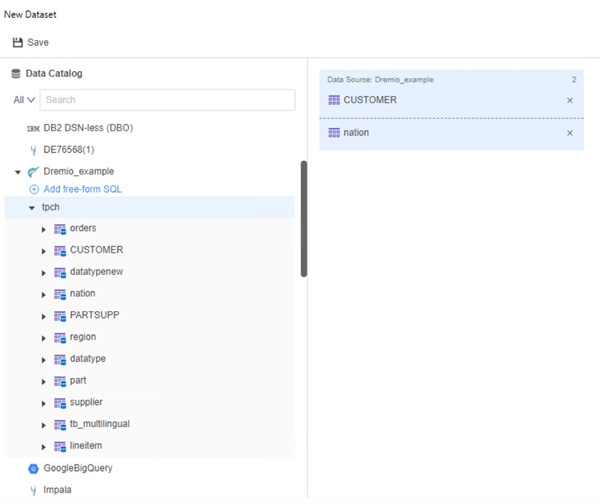
- In the Data Catalog panel, choose the Data Source that you created above. A list of available schemas appear.
- Select one or more schemas and click Connect.
- In the Data Catalog panel, double-click the tables that you want to add to the cube.


-
In Library, choose Create New > Dashboard.
-
Choose a project from the Create Dashboard in drop-down list.
-
Click Blank Dashboard.
-
In the Datasets panel, click New Data.
-
Click
 , next to Data Catalog.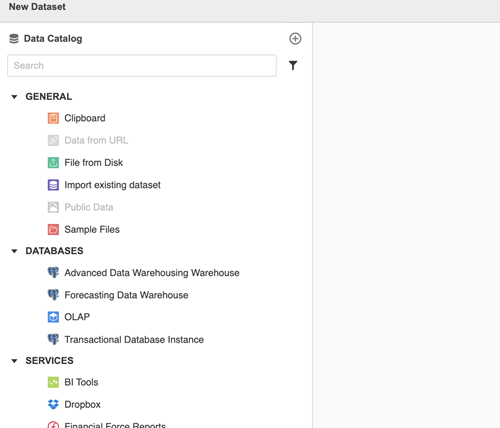
- Find and select the Dremio connector from the data source list.
- Enter a Name.
- Expand the Default Database Connection drop-down and click Add New Database Connection.
- Enter a Name, Host Name, and Port Number.
- Expand the Default Database Login drop-down and click Add New Database Login.
- Enter your Username and Password.
- Click Save.
-
If you want to choose the schema, you can add the schema parameter in the Advanced tab. You can also add other connection parameters in the Advanced tab. You can find supported parameters in the Dremio documentation.
-
In Data Catalog, click the Dremio data source you created, choose a namespace, and click Connect.
-
Double-click a table to add it to the right pane.
You can also hover over the data source and click Build a Query or Add free-form SQL.
-
Click Prepare Data to modify your data or click Save.
-
Create your dashboard using your imported data.
Use Dremio for Schema Modeling
Best practice to create a schema object against Dremio is to use Workstation.
- Connect to your environment.
- In the Navigation pane, click Schemas.
- Double-click the project schema you want to edit.
- In the Data Catalog panel, all data sources appear.
- Click a Dremio data dource and select the namespaces that you want to connect.
- Click Connect.
- Right-click the table you want to add to the schema.
- Click Save and Update Schema.
Limitations
The following unsupported functionality and limitations are present when connecting to Dremio.
- A driver for Dremio is not officially shipped with Strategy. For more information on establishing a successful connection to Dremio, see KB485937: Dremio Connection Best Practice.
- MTDI Web and older dataset workflows can not create or detect the Dremio connection.
- Parametered query is not supported by Dremio.
- OAuth authentication method for JDBC drivers is not supported.
- SSL connection is not certified.