
MicroStrategy ONE
Evaluation Order in Data Definition and View Definition
The data evaluation order settings control the order of evaluation for consolidations, report limits, compound smart metrics, and subtotals. Once the view definition becomes different from the data definition, the view evaluation order is activated in the Report Data Options: Evaluation Order dialog box. It becomes available when:
- Objects are on the Report Objects but not on the grid
- A view filter is defined
- A derived metric is used
These actions must include or affect objects on which you can set the evaluation order. For example, a consolidation on the Report Objects but not on the grid will activate the view evaluation order. Since a derived metric is, by definition, a compound smart metric, it always activates the view evaluation order.
A separate view order is necessary because any manipulation of the view that does not change the SQL is performed after the base report is completed. Therefore, objects in the data evaluation order settings are evaluated first, and then those in the view evaluation order are evaluated. The following table describes where objects are evaluated.
|
Object |
Evaluation Order |
|
Consolidation |
Data |
|
Derived metric |
View |
|
Derived element |
View |
|
Report limit |
Data |
|
Compound smart metric |
Data or View: Set automatically to View Can be changed manually |
|
Subtotals |
View |
Data vs. View Evaluation Order Example
Consider the following report, where Revenue Rank is a smart metric ranking the Revenue metric. (To create this metric, apply the rank function to the Revenue metric. On the Subtotals/Aggregation tab of the Metric Editor, select the Allow Smart Metric check box. For more details, see the MicroStrategy Developer help.) Eight rows of data are returned.
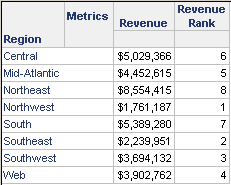
To restrict the report, create a metric limit of Revenue greater than $3,000,000, as described below.
To Create a Metric Limit
- Choose Data > Report Data Options.
- Under Categories, expand Calculations and then select Report Limit. Calculations – Report Limit appears on the right-hand side of the dialog box.
- Click Modify.
- Double-click in the Limit Definition area of the editor.
- In the Metric box, enter Revenue and click OK.
- Select the Revenue metric from the list and click OK.
- In the Function box, select Metric Value.
- From the Operator box, select Greater than.
- From the Value box, select Value.
- Type 3000000 in the field.
- Click OK.
- Click Save and Close.
- Click OK.
Only those regions with a Revenue greater than $3,000,000 appear on the report. Only six rows of data are displayed, as shown below:
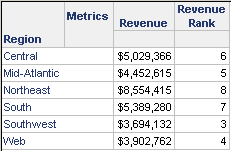
The values for Revenue and Revenue Rank have not changed, only the amount of data that is displayed has. By default, Revenue Rank, as a smart metric, is calculated before the metric limit. The metric limit then removes the regions with the lowest revenue, which have the Revenue Rank of 1 and 2.
Next, create a derived metric, which causes the report view to differ from the data definition.
To Create a Derived Metric
- Choose Insert > New Metric.
- Double-click Revenue in the list of Report Objects. It appears in the metric definition on the right.
- Enter /2, which also appears in the metric definition.
- By default, the name of the derived metric is New Metric. Change it by typing Revenue/2 over New Metric in the text field above the toolbar.
- Click OK.
- Format the derived metric:
- Choose Format > Revenue/2 > Values.
- On the Number tab, select Currency in the Category list.
- Set Decimal Places to 0 (zero).
- Click OK.
The report results are displayed below. Notice that Revenue Rank is no longer missing 1 and 2, but is instead calculated based only on the six rows displayed. This results in a ranking from 1-6, instead of 3-8.
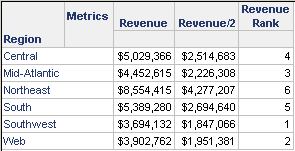
Once a derived metric is added to a report, the view evaluation order is activated. As a smart metric, the Revenue Rank metric is automatically moved to the view evaluation order, while the metric limit stays in the data evaluation order. Recall that, by default, objects in the view are calculated after objects in the data definition are computed.
You can specify whether compound smart metrics are evaluated in the data or the view definition. For instance, in this example, you can force Revenue Rank to be calculated before the metric limit, to include all the regions, even those no longer displayed on the report, in the ranking.
To Move a Compound Smart Metric from the View to the Data Evaluation Order
- Choose Data > Report Data Options.
- Under Categories, expand Calculations and select Evaluation Order. Calculations – Evaluation Order appears on the right side of the dialog box.
-
Clear the Use default evaluation order check box.
Notice that both the Revenue Rank metric and the derived metric Revenue/2 are calculated in the view evaluation order (the metrics are displayed in the View evaluation order list).
- Click Advanced.
- Click in the Metric Calculation column of the Revenue Rank row, and select Evaluate in the dataset from the drop-down menu.
- Click OK. Revenue Rank is now displayed in the Dataset evaluation order list.
- Click OK.
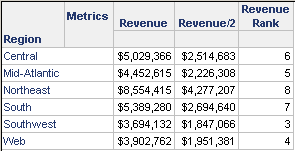
As shown below, the range of Revenue Rank is now 3-8, because the metric includes all the regions, even if they are not displayed on the report.
Consolidation and View Evaluation Order Example
The following example demonstrates how the default evaluation order and view evaluation order affect consolidations. For another example on consolidations, see Evaluation Order. That example presents a report containing two consolidations but does not discuss the view evaluation order.
You want to compare the revenues for the Years 2022 and 2023 by Category and Subcategory. First, create a consolidation called Years to calculate the difference. The consolidation elements are defined below.
- 2022: Year = 2022
- 2023: Year = 2023
- Percentage Difference: (2022 - 2023) / 2023
Build a report with Category and Subcategory as the rows. Place the Years consolidation and the Revenue metric on the columns, then enable subtotals. When you execute the report, the following is displayed.
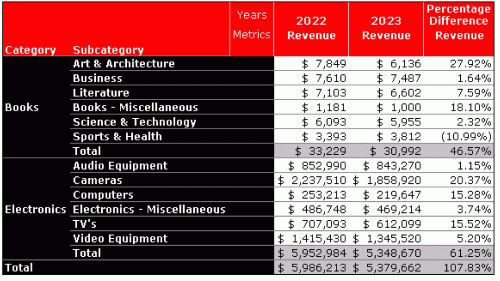
Due to space constraints, this report sample contains a report filter to include the Books and Electronics categories only.
Notice that the Percentage Difference is calculated correctly for each Subcategory, as shown in the following example:
($7,849 - $6,136) = $1,713 / $6,136 = 27.92%
The totals for the Revenue column are also correct. However, the totals for the Percentage Difference column are wrong:
$33,229 - $30,992 = $2,237 / $30,992 = 7.22%
The report calculates the Percentage Difference as 46.57%. The default evaluation order calculates the consolidation before the total. The total is determined by adding all the values in the column, and not by the correct method applicable here of calculating the formula [(2022 - 2023)/2023] across the rows. To calculate the total across the rows, change the evaluation order to calculate the total before the consolidation.
For steps, see To Move a Compound Smart Metric from the View to the Data Evaluation Order. Set Total to 1 and Years to 2.
The report is redisplayed as shown below:
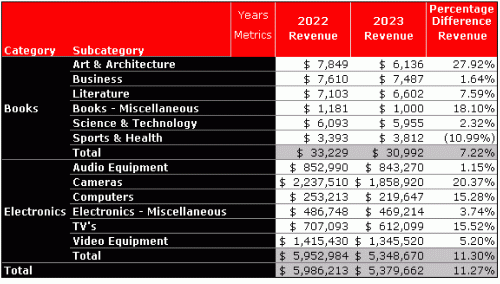
While this solution works for this particular instance of the report, what happens when you move Subcategory to the Report Objects? You cannot do it because you receive an error that the manipulation is incompatible with the evaluation order settings.
Moving Subcategory to the Report Objects activates the view evaluation order. When this occurs, the Years consolidation stays in the data evaluation order and the subtotals move to the view evaluation order. Since the data definition is evaluated before the view, the consolidation is calculated before the subtotals. However, you set the subtotals to be calculated first, to produce the correct results for the report. This conflict causes error.
To produce the correct results, you must either delete Subcategory from the report completely and not move it to the Report Objects, or create a second report without Subcategory.