
Strategy ONE
Executing a Test Under Multiple MicroStrategy User Accounts
When you create an integrity test, you can specify multiple MicroStrategy user accounts to execute the reports and documents in the test.
For example, your MicroStrategy system may use security filters to restrict access to data for different users. If you know the MicroStrategy login and password for a user who has each security filter, you can run the integrity test under each of these users to ensure that the security filters are working as designed after an upgrade. You can also compare a set of reports from the same project under two different users to ensure that the users are seeing the same data.
On the Enable Multiple Logins page of the Integrity Manager Wizard, you specify the authentication method, MicroStrategy login, and password for each user. Integrity Manager executes each report/document in the integrity test under each user account, one account at a time, in the order the accounts are listed. If you are executing a comparative integrity test, the results from the first user in the base project are compared with the results from the first user in the target project, and so on.
For example, you create a project-versus-project integrity test with reports Report1, Report2, and Report3. You are testing the reports with users Alice and Carol in the base project. You want to compare Alice's results in the base project with Bob's results in the target project, and Carol's results in the base project with Alice's results in the target project, so you configure the Enable Multiple Logins page as follows:
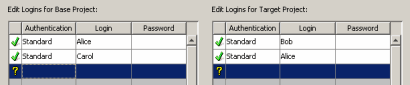
When the test is executed, the reports are executed in the following order:
|
Report execution |
Base project report and user |
Target project report and user |
|
1 |
Report1 Alice |
Report1 Bob |
|
2 |
Report2 Alice |
Report2 Bob |
|
3 |
Report3 Alice |
Report3 Bob |
|
4 |
Report1 Carol |
Report1 Alice |
|
5 |
Report2 Carol |
Report2 Alice |
|
6 |
Report3 Carol |
Report3 Alice |
Note that the reports executed by Alice in the base project are compared with the reports executed by Bob in the target project, and the reports executed by Carol in the base project are compared with the reports executed by Alice in the target project.
To Execute a Test with Multiple Users
- Create an integrity test, including the information described in the steps below. Step through the Integrity Manager Wizard and enter the information required on each page. For details about the information required on each page, click Help to open the help for that page of the wizard.
- On the Welcome page, select the Enable Multiple Logins check box.
- On the Enable Multiple Logins page, for each user, specify the authentication mode, login, and password.
- Make sure the users are in the order that you want the test to be executed in. In addition, if you are creating a comparative integrity test, make sure that the users whose results you want to compare are paired up correctly in the tables.
- Finish stepping through the wizard and entering the required information. When the test is executed, each report/document is executed under each specified user account.