Strategy One
Mosaic Sentinel Risk Management
Starting in Strategy One (December 2025), you can use the Risk Management module for real-time monitoring and alerting when an anomalous operation is performed on a sensitive attribute or metric defined in the Mosaic model.
Prerequisites
Privileges
You must have the Use Mosaic Sentinel and Monitor Activity privileges to access Mosaic Sentinel.
Set Attribute and Metric Sensitivity
If you want to view alerts on anomalous operations, you must define attribute and metric sensitivity. You can define this setting using automatic detection with suggestions or manually. After the objects are defined as sensitive, any user query executed against those objects will automatically generate an alert in the Risk Management module, unless the user belongs to the alert exclusion group.
Sensitivity Suggestions
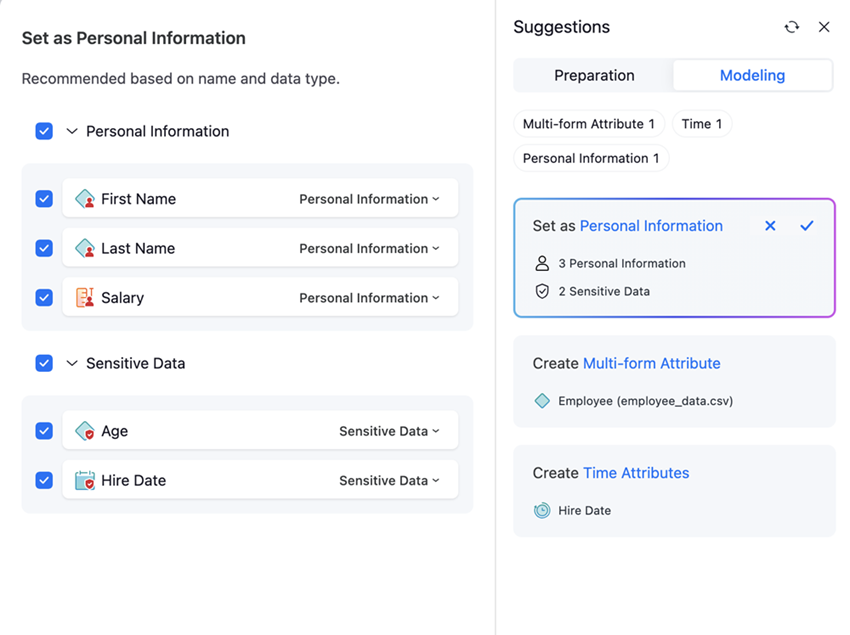
To use sensitivity suggestions:
-
Click a Personal Information suggestion and details display next to the panel.
-
Select or deselect the check box next to the personal information and sensitive data attribute or metric.
-
Click Accept.
Sensitivity Setting
-
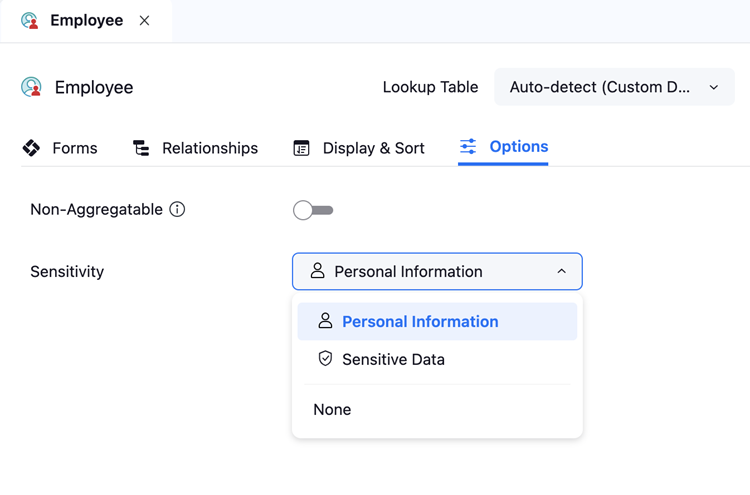
While editing or creating an attribute or metric, click Options.
-
Expand the Sensitivity drop-down list.
-
Choose Personal Information for objects such as names and salary or choose Sensitive Data for objects your business deems sensitive such as age and hire date.
-
Click Save.
Alert Exclusion Group
To reduce unnecessary alerts, you can exclude user groups with normal access patterns to sensitive data so that only true anomalies trigger alerts.
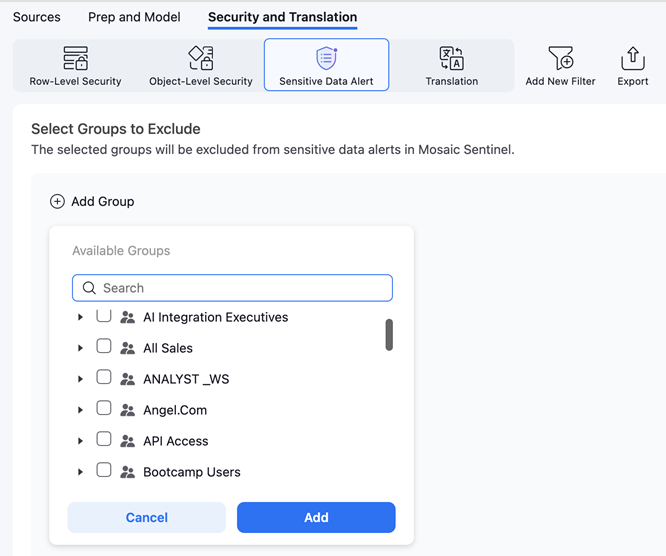
For example, if you do not want members of the HR group to trigger alerts whenever they access salary data, the Mosaic model owner can add the HR group to Sensitive Data Alert, as shown below. With this configuration, normal and expected access patterns will no longer generate alerts, only anomalous behavior will.
-
Click Save.
-
Click Security and Translation in the top left.
-
Click Sensitive Data Alert.
-
In Select Groups to Exclude, click Add Group.
-
Find the groups you do not want to access personal information and select the check box next to it.
-
Click Add.
-
To add more groups, click Add
 .
. -
To remove groups, hover over the group and click Delete
 .
. -
Click Save.
View Risk Management
-
In the Library sidebar, click Mosaic Sentinel.
-
Click Risk Management.
-
All alerts should be reported in real-time. Optionally expand the time range selector in the top right and choose the time frame of data you want to view.
-
Click Apply.
Alerts
There are multiple alerts that Mosaic Sentinel can trigger:
-
Sensitive data access: When a user accesses sensitive objects and they are not a member of the alert exclusion group.
-
Unusual access time: When a user accesses sensitive data at an unusual time compared to their historical access. This alert is based on anomaly detection. Therefore, it may be generated even for users who belong to the alert exclusion group.
-
Large-volume sensitive data access: This alert is generated when a user accesses a sensitive object in volumes significantly higher than their historical usage. As with unusual access time, this anomaly-based alert may also be generated even if users belong to the alert exclusion group.
Historical access patterns are learned over 60 days. However, alerts can generate after a minimum warm-up period of one day and 24 collected data points.
Alert Notification
To manually notify the model owner or security team of the alert:
-
Open Mosaic Sentinel and click Risk Management.
-
Expand an alert to view more information such as the user ID, user group, application, Mosaic model, and description.
-
In the Actions column of the alert, click Notify.
-
In Recipients, type an email address to notify of the alert.
-
Optionally edit the notification Message.
Notification details are automatically applied.
-
Click Send.
Suppress Sensitive Data Access Alert
Suppress an alert for specific number of days or indefinitely. This action is helpful when temporary access to sensitive data is expected and should not trigger additional alerts (for example, during contracting activities):
-
Open Mosaic Sentinel and click Risk Management.
-
Expand an alert to view more information such as the user ID, user group, application, Mosaic model, and description.
-
In the Actions column of the alert, click Suppress and choose how long to suppress the action for.