
Strategy One
Reduce Cube File Size By Up to 50% Using Cache Compression
This former preview feature, introduced in MicroStrategy ONE Update 10, is out of the box starting in MicroStrategy ONE Update 11.
Enable or Disable Cache Compression in MicroStrategy ONE Update 11 and newer:
-
Open the Workstation window.
-
In the Navigation pane, click Environments.
-
Right-click your connected environment and choose Properties.
-
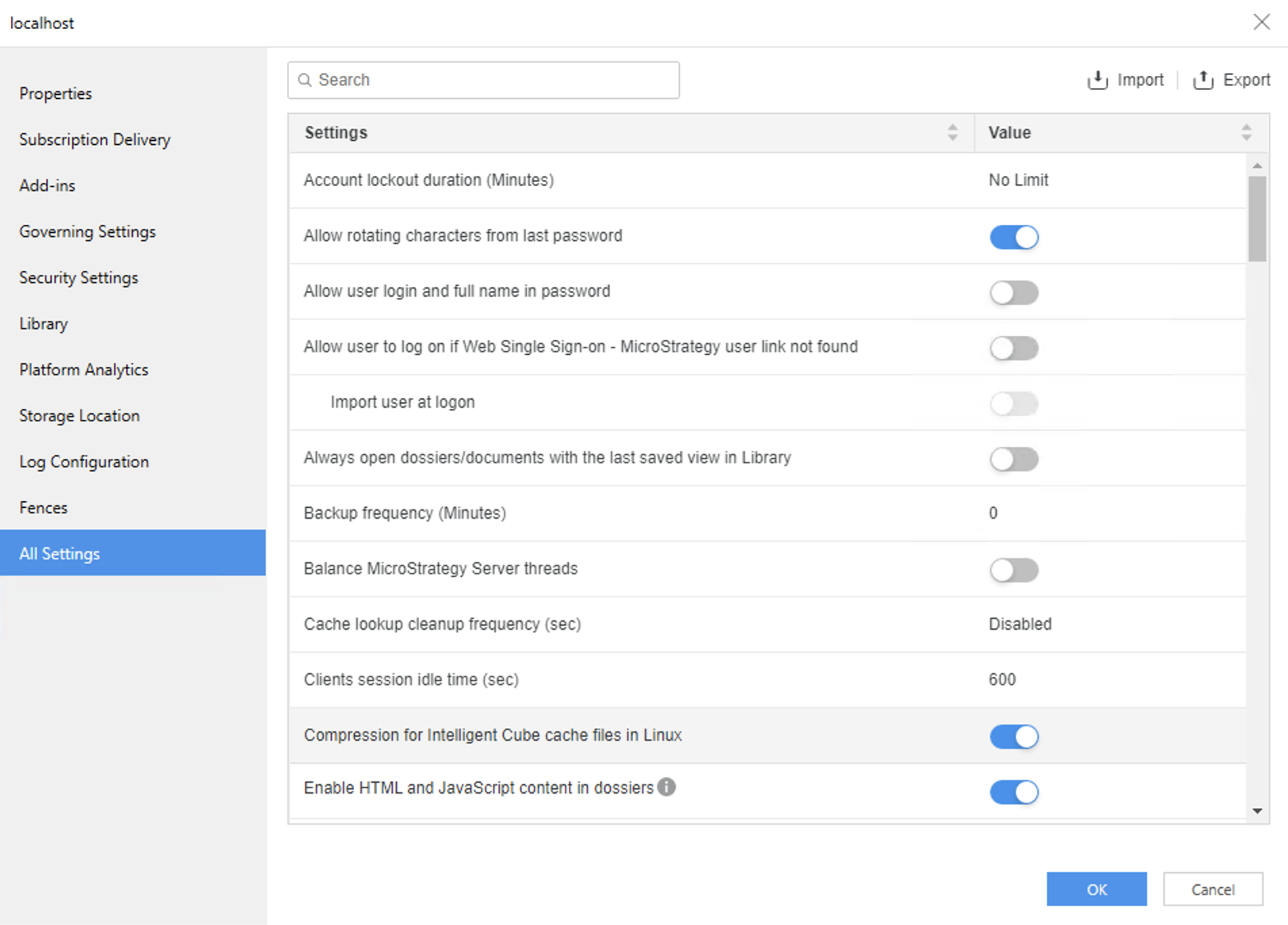
In the left pane, click All Settings.
-
Enable or disable Compression for Intelligent Cube cache files in Linux.
-
Click OK.
-
Open the Strategy REST API Explorer by appending
/MicroStrategyLibrarywith/api-docs/index.html?visibility=allin your browser. -
Create a session and authenticate it. In the Authentication section, use
POST /api/auth/admin/login. -
Click Try Out and modify the request body by providing your user name and password.
-
Click Execute.
-
In the response, find
X-MSTR-AuthToken. -
To get the current feature status:
-
Under the Configurations section, look up
GET /api/v2/configurations/featureFlags. -
Click Try Out.
-
Set the proper
X-MSTR-AuthTokenfrom step 5. You can also get this via inspecting the browser network XHR requests. -
Click Execute.
-
Search for
FCCin the response body to find its status details.
-
-
Under the Configurations section, look up
PUT /api/configurations/featureFlags/{id}. -
Click Try Out.
-
Set the proper
X-MSTR-AuthTokenfrom step 5. You also can get this via inspecting the browser network XHR requests. -
Set
idtoD148530D519D4CBD5E68307E97FE4674. -
To enable this preview feature, set the
statusvalue to1. -
Click Execute.
-
Repeat step 6 to verify that the feature is enabled.