Strategy One
Comparison Tests
Starting in Strategy One (April 2026), you can archive errors generated by the comparison test.
A comparison test allows you to evaluate whether two sets of test results are identical. You can perform the following:
-
Compare a baseline test to a new (current) execution of that same test.
-
Compare two historical executions of the same baseline test.
Starting in Strategy One (February 2026), you can also compare execution results across different environments:
-
Compare two historical executions of two baseline tests running in different environments.
-
Compare new executions of two baseline tests running in different environments.
-
Compare a new execution of a baseline test in one environment with a historical execution of another baseline test in a different environment.
The comparison test checks whether their outputs match, including data, layout, and formatting. Use comparison tests for the following:
-
Migration Validation: Ensure results are consistent after moving objects or data to a new environment (for example, development to production).
-
Object Consistency: Compare two versions of an object after modifications or refactoring.
-
Parallel Testing: Validate that two systems or environments produce identical results.
You must have the Integrity Manager privilege to use the Test Center.
Create a Comparison
- Open the Workstation window.
- In the Navigation pane, under Administration, click Test Center.
-
Select Comparison Test, choose the content to include (Data and/or SQL), and click Next.
-
Choose the Source environment. Only the environments in Strategy One (August 2025) or later will be available to create a comparison test.
-
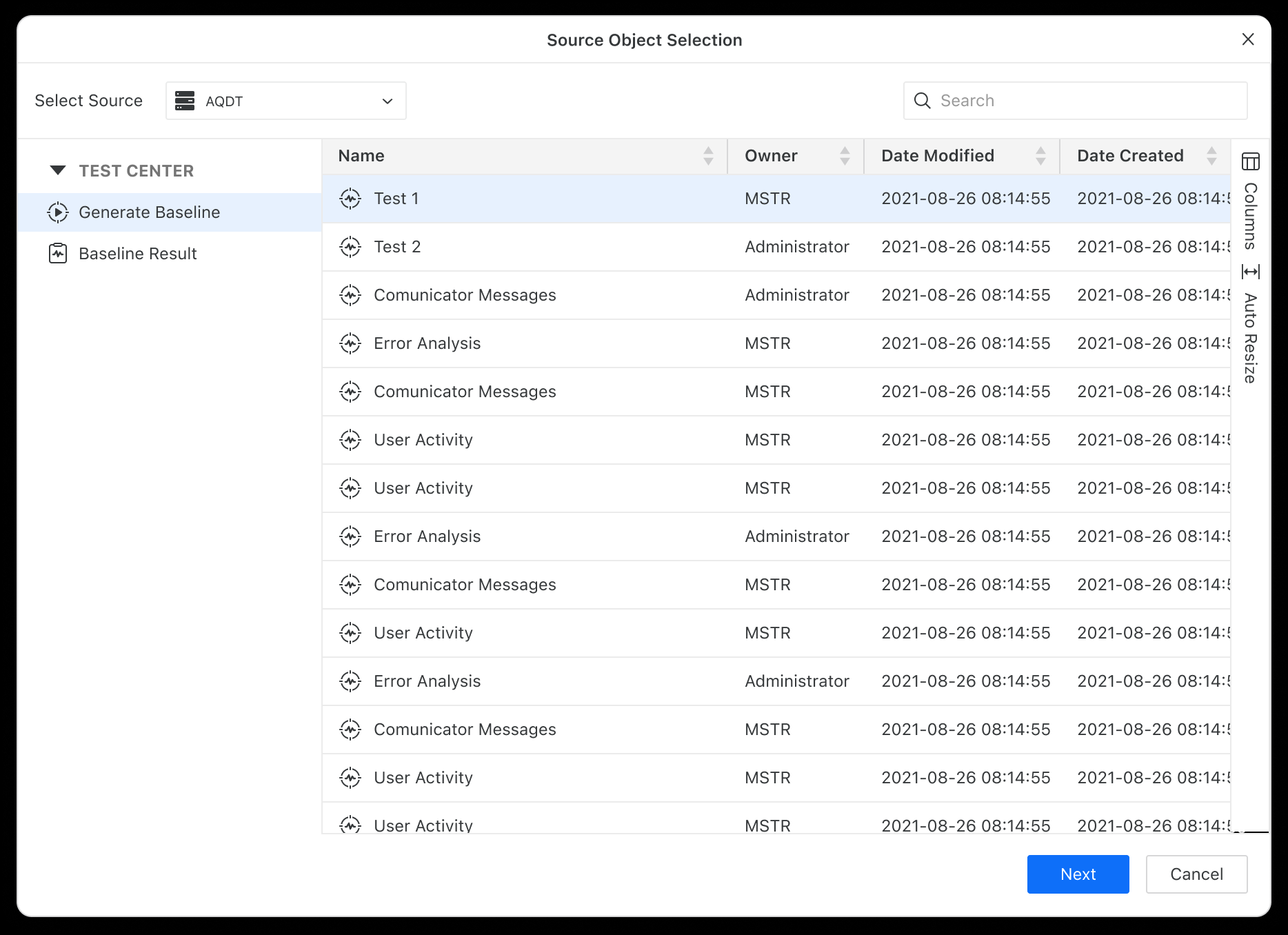
Choose the source object and click Next. A source object can be one of the following:
-
Baseline test: The test will be executed to generate a new baseline result for the comparison.
-
Baseline result: An existing historical execution of a baseline test that you want to use directly for the comparison.
After you select the source and target, click Next.
-
-
Choose the target environment.
-
By default, comparisons are performed within the same environment. If you want to compare results in the same environment, keep the target environment equal to the source environment.
-
-
Starting in Strategy One (February 2026), you can also compare results across different environments, provided that:
-
The source and the target environments are both upgraded to Strategy One (February 2026) or later.
-
The source and the target environments are configured to use the same storage location. For storage location configuration, refer to Configure the Storage Service via Workstation.
-
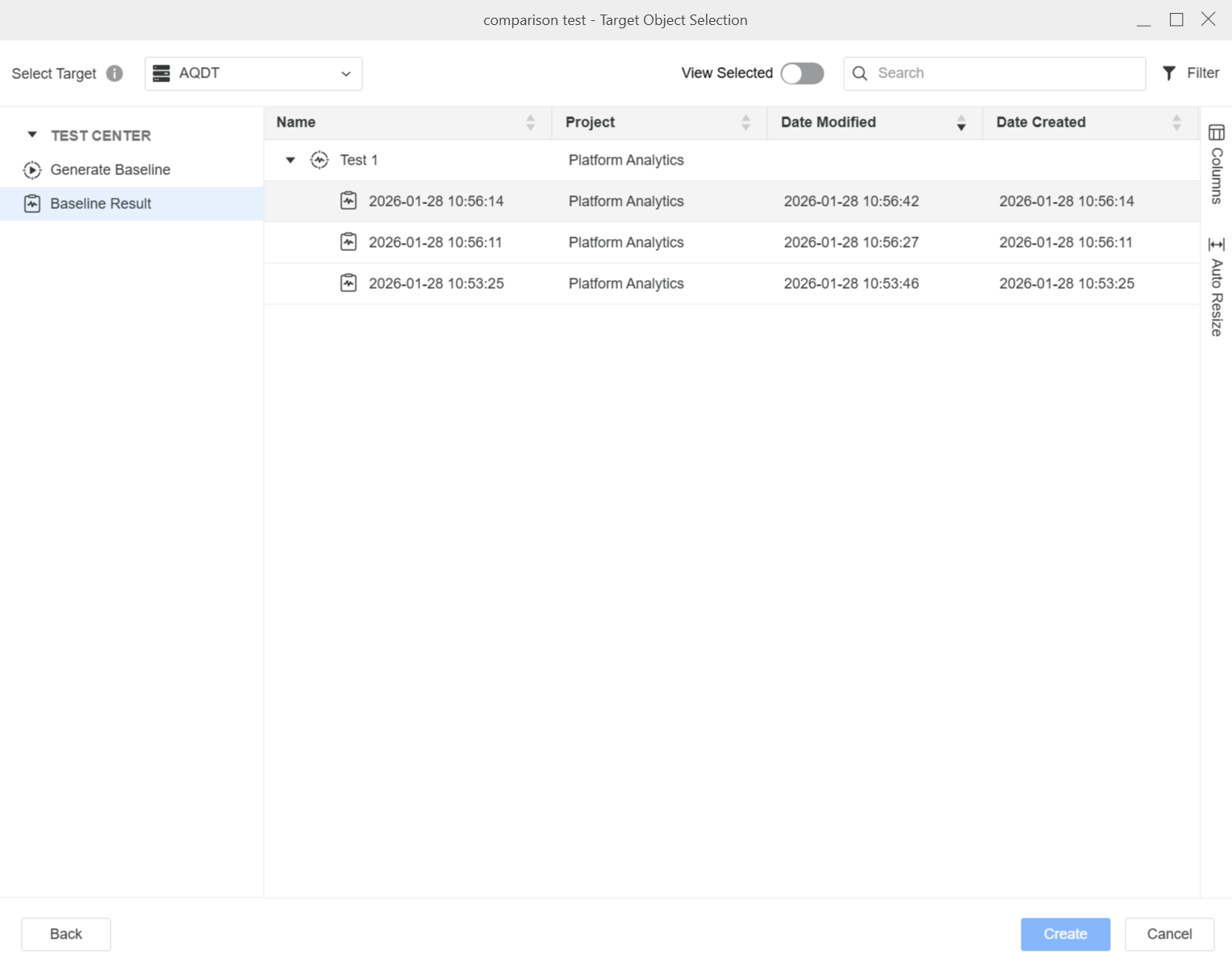
Choose the target object and click Next. The rules for choosing the target depend on whether you are comparing within one environment or across environments.
-
Within a single environment, the source and target must always relate to the same baseline test, and the target must be chosen according to the source type:
-
When the source is a baseline test
-
The target must be a baseline result of the same baseline test. For Example:
-
Source: Financial Dashboard Baseline
-
Target: Financial Dashboard Baseline – July 2, 2025 (Result)
-
-
-
When the source is a baseline result
-
The target can be another baseline result of the same baseline test. For Example:
-
Source: Financial Dashboard Baseline – July 2, 2024 (Result)
-
Target: Financial Dashboard Baseline – July 5, 2024 (Result)
-
-
The target can also be the baseline test that produced the source result. For Example:
-
Source: Financial Dashboard Baseline – July 2, 2024 (Result)
-
Target: Financial Dashboard Baseline
(This is logically equivalent to the first scenario, with source and target roles reversed.)
-
-
-
-
For comparisons across environments, you can choose either a baseline test or a baseline result as the target object, regardless of whether the source object is a baseline test or a baseline result. The only requirement is that the source and target are associated with baseline tests that are intended to be compared (for example, the same baseline test deployed in two environments, or two baseline tests that are comparable by design).
9. The test and its results are located in the Test Center.
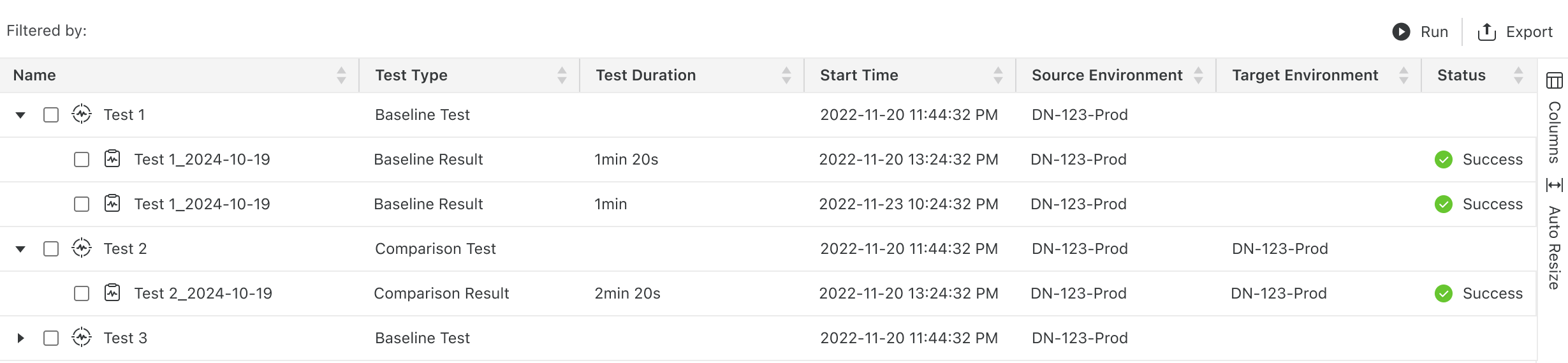
Comparison Test Results
-
To see specifics,
Right-clicka test result and select View Result. -
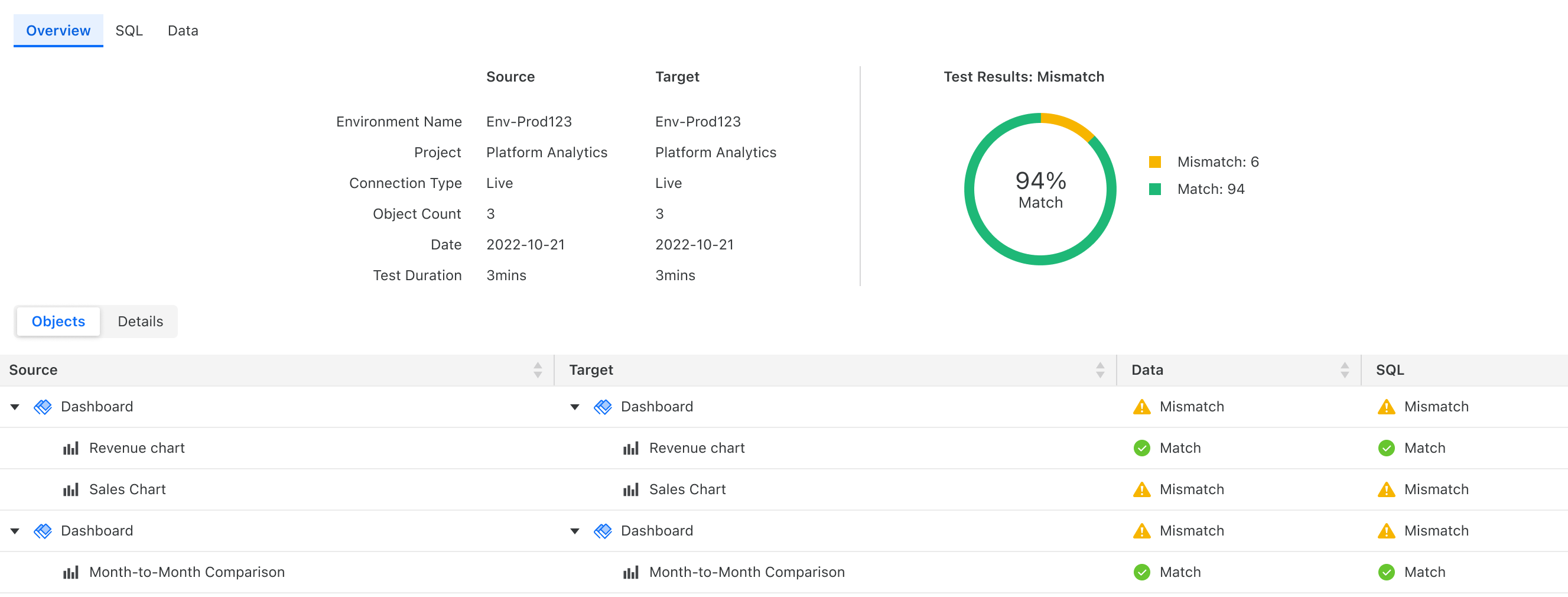
By default, you will see the Overview page. The overview page provides a summary of pass ratios, matches, and mismatches between the two compared objects (for example, baseline versus result, result versus result).
-
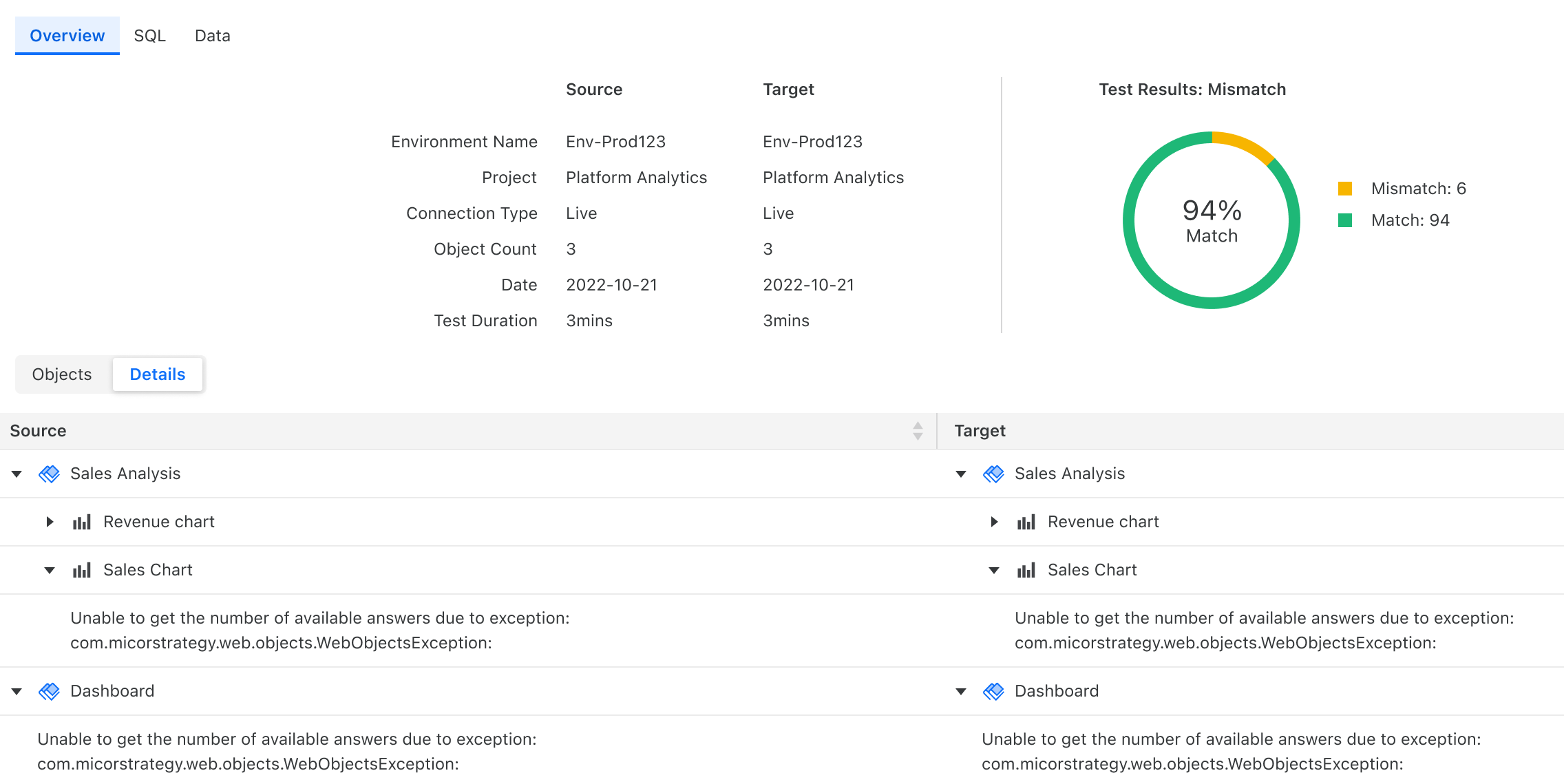
To check for errors and mismatches as well as explanations, click the Details tab.
- Starting in Strategy One (April 2026), you can archive the errors. Right-click the header and select one of the following:
- To archive errors thrown at the Objects level, select Archive
- To archive all entries of the same error type, select Archive All with Same Error
-
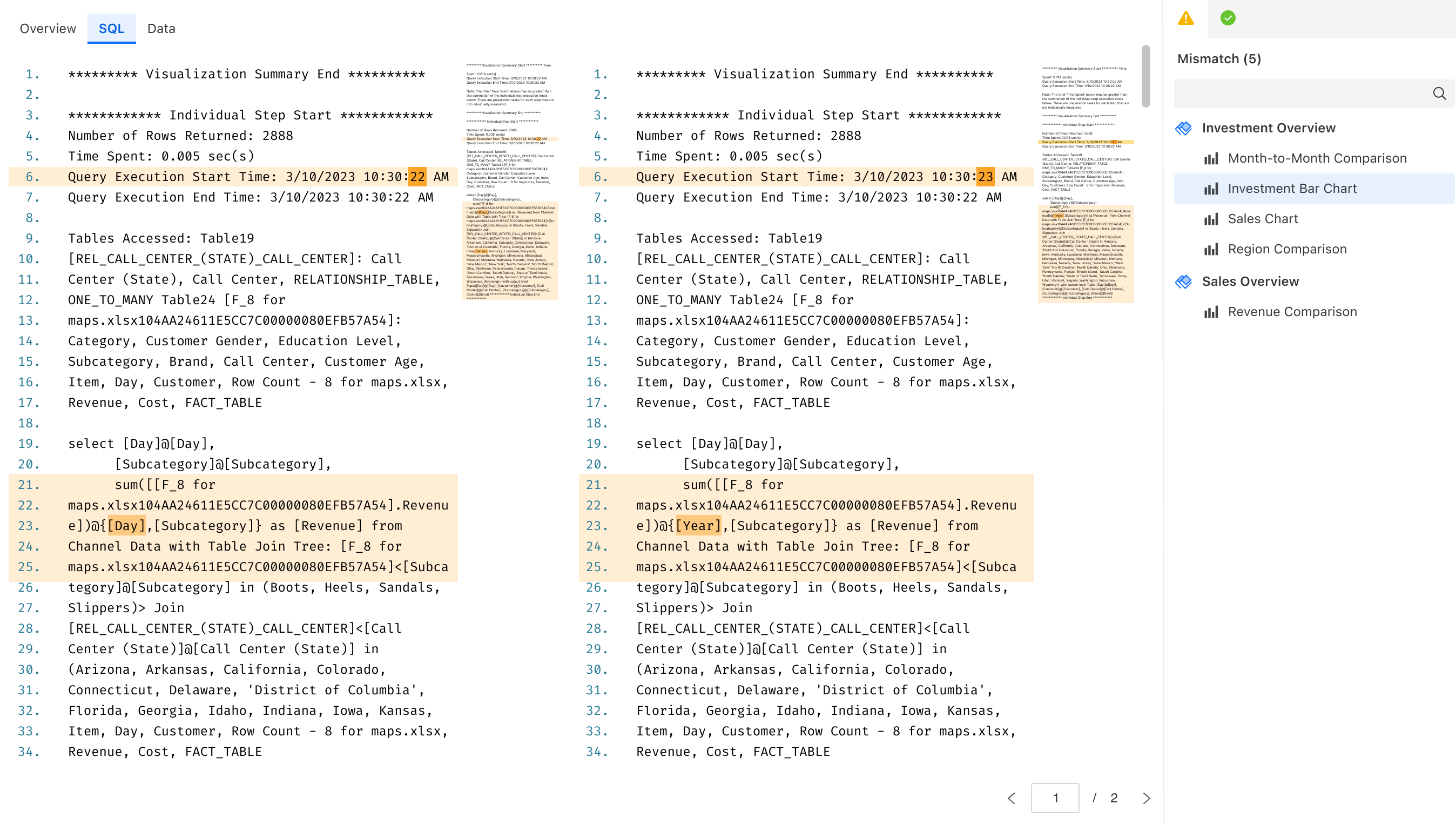
To switch to the SQL view, click SQL. This page highlights differences between generated queries.
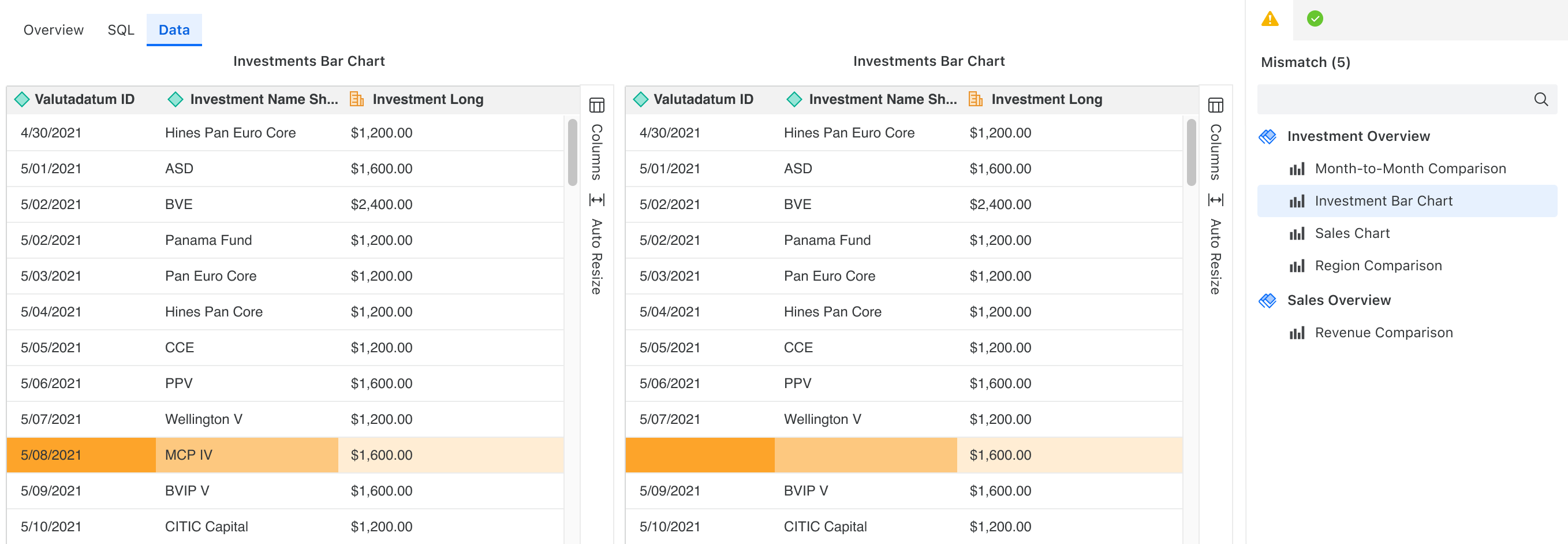
-
To switch to the Data view, click Data. This page compares data output side by side, showing precisely where discrepancies exist. If there are missing visualizations, the source and target are marked in the objects panel.