
Strategy One
Create Prompted Incremental Refresh Reports (IRRs)
To use, create, and edit IRRs, you must at least have the following privileges respectively:
-
Client-Web: Web use metric editor
-
Server-Intelligence: Create application objects
- Open the Workstation window.
-
In the Navigation pane, click Datasets and locate the cube where you want to update data.
-
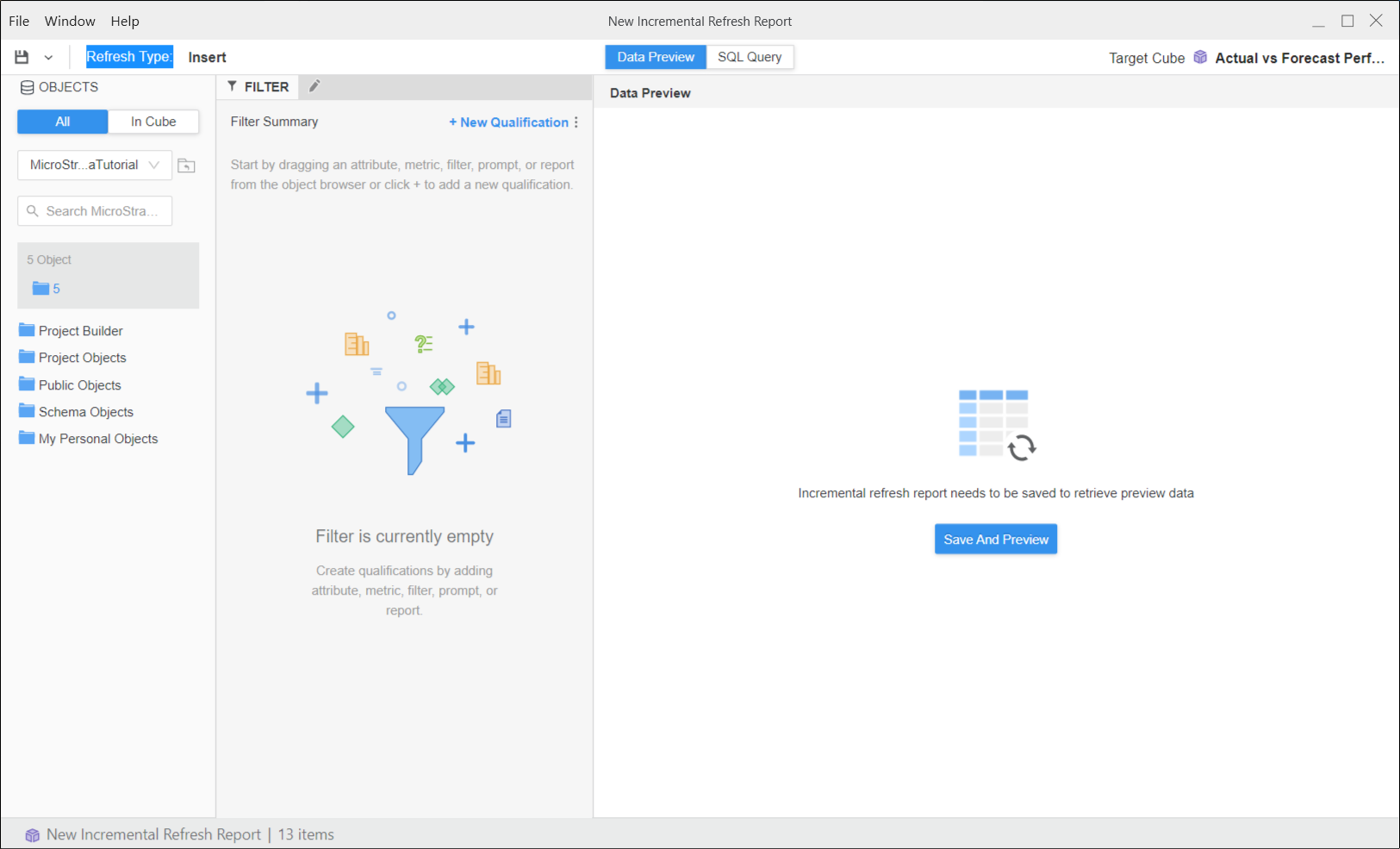
Right-click the cube, point to New, and select Incremental Refresh Report from.
-
Choose the refresh method from the Refresh Type drop-down list.
Click here to see descriptions of the available options.Update Adds new data if it does not already exist in the Intelligent cube. If there are matches, it updates the values where applicable.
Insert Adds only new data fetched by the incremental refresh report to the Intelligent cube, without altering data already existing in the cube
Delete Removes existing data from the Intelligent cube if it matches the criteria in the definition of the incremental refresh report.
Update Only Replaces the existing Intelligent cube. This option does not add new data to the Intelligent cube.
Replace Available for incremental refresh filters
-
In the Filter panel, click New Qualification.
-
Click Search in Based On.
-
Search for an existing prompt or click Create Prompt.
-
If you click Create Prompt:
For more information on the prompt definition fields and descriptions of prompt types, see Types of Prompts.
-
Expand the type drop-down list and choose a prompt type.
If you have already selected a prompt type and want to choose a new type, click the prompt type name and choose a new type.
-
In Search search and choose the object you want to base the prompt on.
-
Click the value next to Prompt title and instructions and optionally edit the Prompt Title and Instructions to display with a user opens the IRR.
-
Click the value next to Answer restrictions.
-
Optionally select the check box next to minimum and maximum objects, qualifications, and more and type a value to further customize the minimum and maximum amounts.
-
Optionally select the check box next to Prompt answer required to require users to answer the prompt to view the IRR.
-
Optionally select the check box next to Allow personal answers to allow users to save and reuse Single or Multiple prompt answers.
-
Click the value next to Default answer and optionally select the check box next to the objects to include in the prompt answer by default.
-
Click Done.
-
-
To see the objects included in the cube definition, in the Objects pane, click In Cube.
-
Click Save And Preview.
-
Define your prompt selections.
-
Click Apply.
-
To view the SQL to be executed, click SQL Query at the top.