Strategy One
Edit Existing Users and Groups
Starting in Strategy One (December 2025), you can add encryption keys to users for encrypted delivery devices. The Project Access & Roles and Privileges pages are consolidated into one Roles and Privileges page.
Administrators can edit existing users and groups.
- You must have the System or Application Administrator role
- You must Manage Environments
- Users
- Groups
Edit an Existing User
- Open the Workstation window with the Navigation pane in smart mode.
- In the Navigation pane, click Users and Groups.
- Select an Environment from the upper-left drop-down.
- In the left pane, click All Users.
-
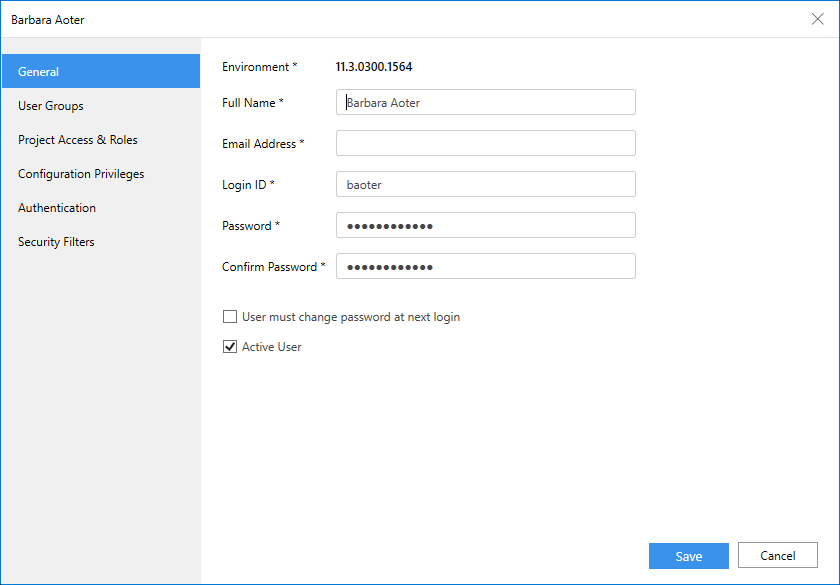
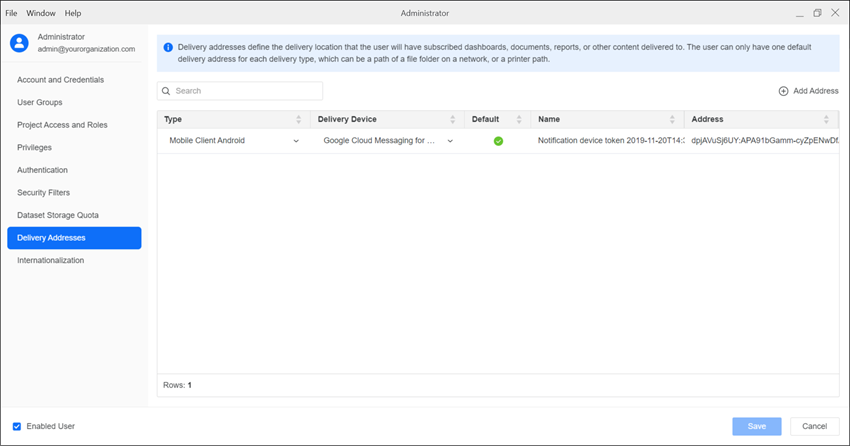
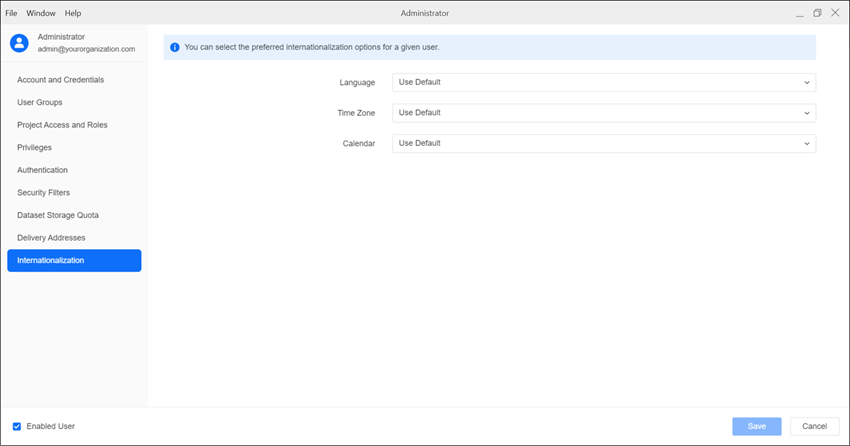
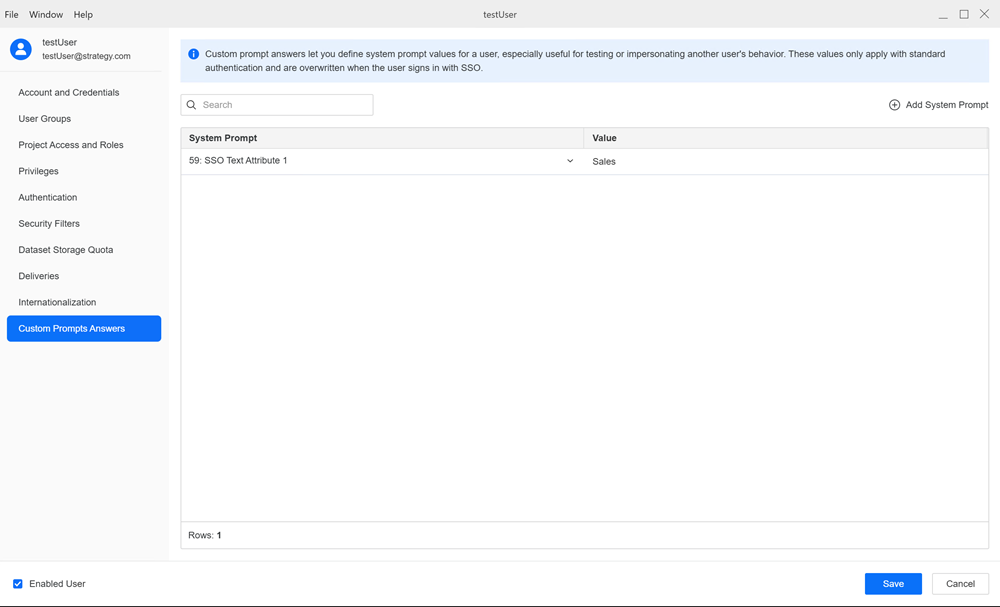
Right-click a user and choose Edit to access:
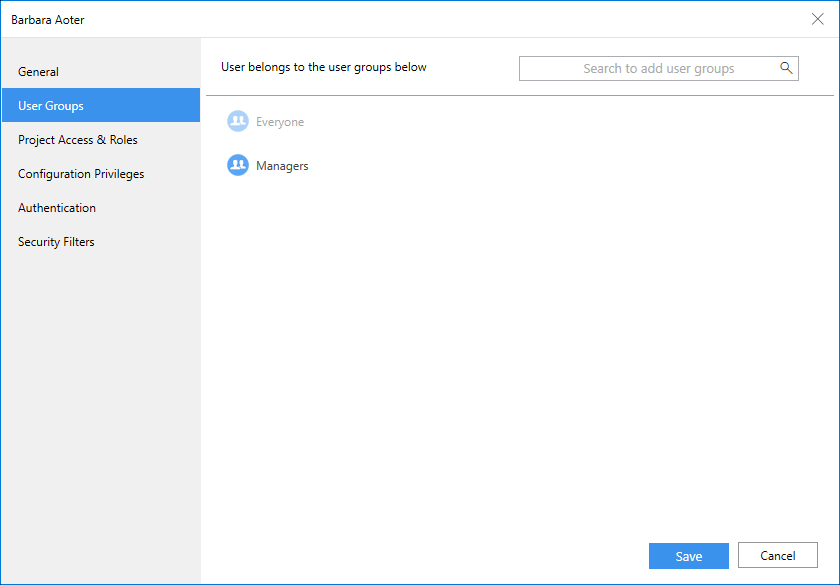
User GroupsNew users are automatically added to the Everyone user group. To add a user to additional groups, search by group name and select the groups.
 Project Access and Roles
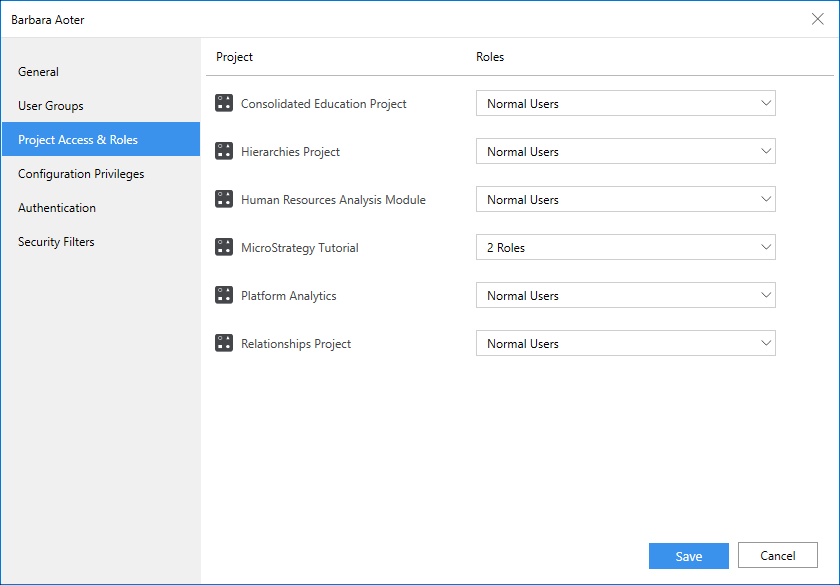
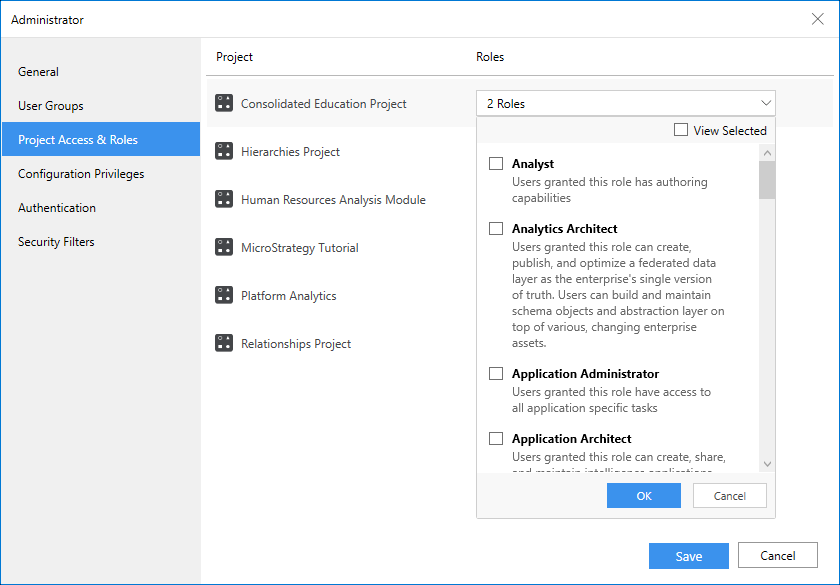
Apply different roles for each project in an environment. Select one or more roles from the drop-down list.
This page is only available if you are using a version prior to Strategy One (December 2025). Starting in Strategy One (December 2025), this page is replaced by Roles and Privileges.
 Roles and Privileges
To apply a privilege to all projects, toggle on Enable next to the privilege.
To apply a privilege to some projects, expand the role drop-down list above each project and choose a security role. For more information on security roles, see Create Security Roles.
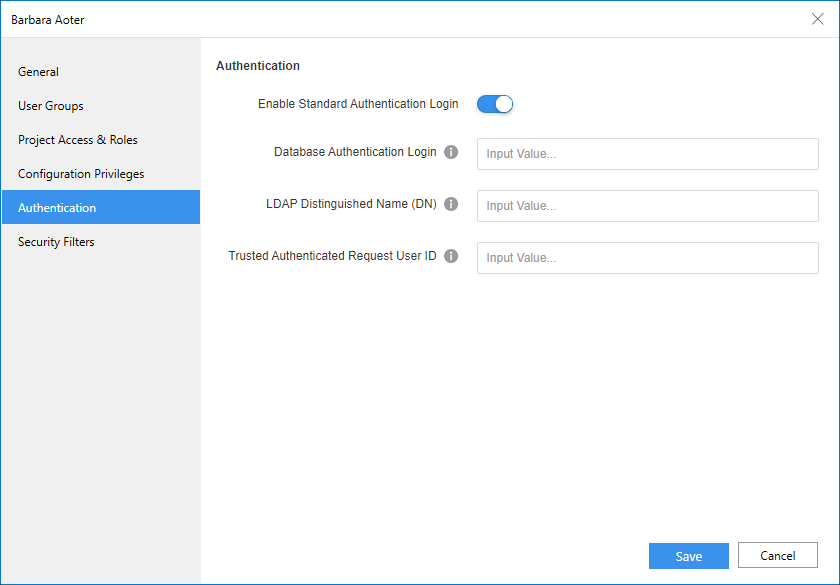
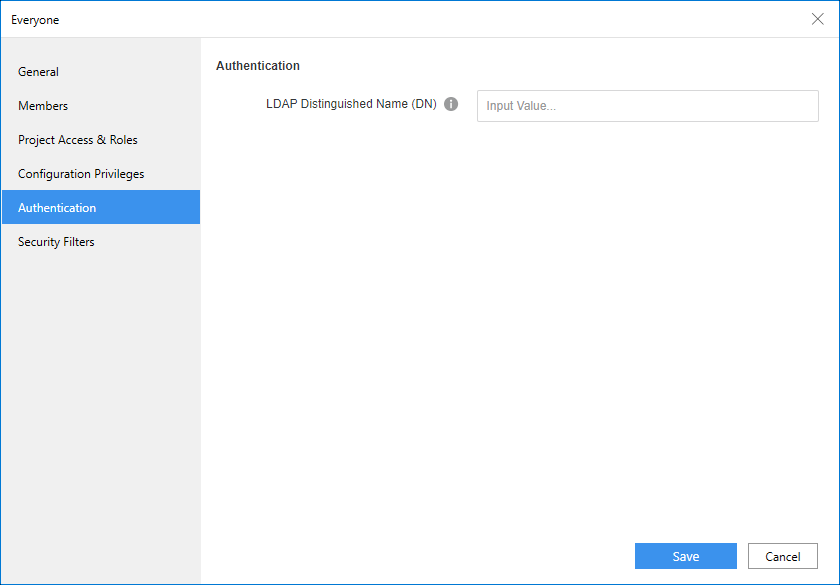
 Authentication
Enable or disable standard authentication and provide authentication details.
See Configure User Authentication for more information.
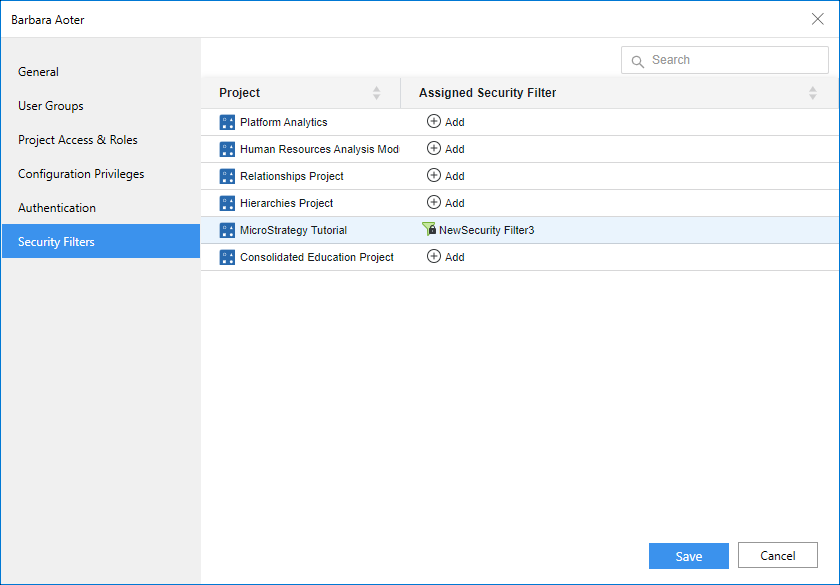
 Security Filters
See Manage Security Filters to assign security filters.
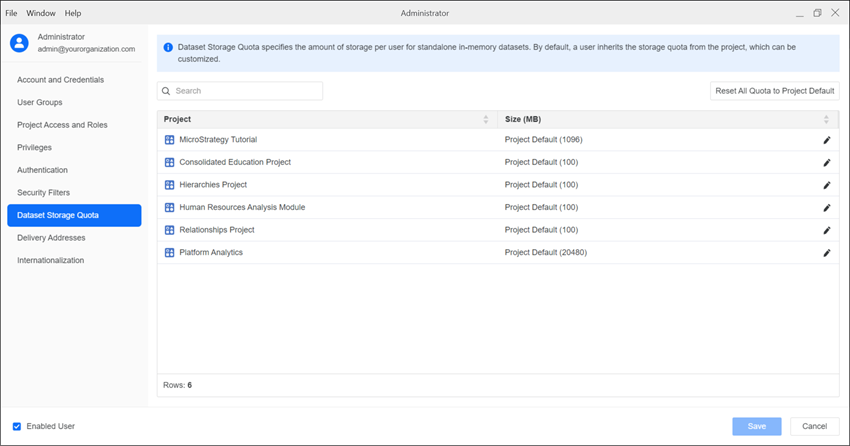
 Dataset Storage Quota
See User Group Governing Settings for more information.
- Click Save.
Edit an Existing User Group
- Open the Workstation window with the Navigation pane in smart mode.
- In the Navigation pane, click Users and Groups.
- Select an Environment from the upper-left drop-down.
- Click User Groups.
-
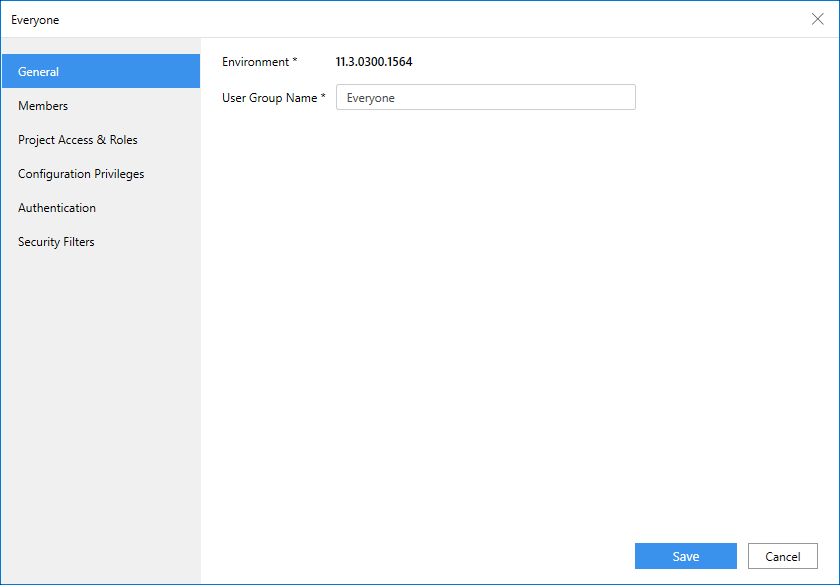
Right-click the user group and select Edit to access:
GeneralAdd a group name and description.
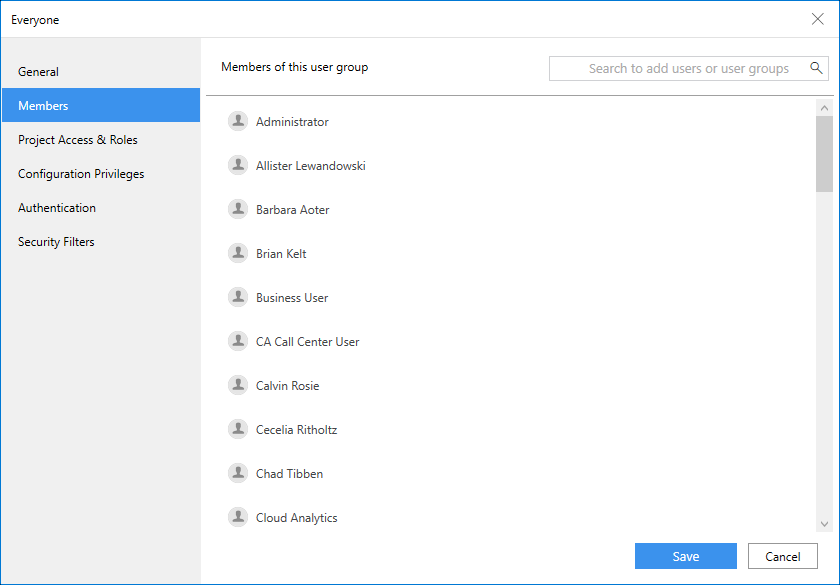
 Users and Groups
Manage users in the group and the parent user groups.
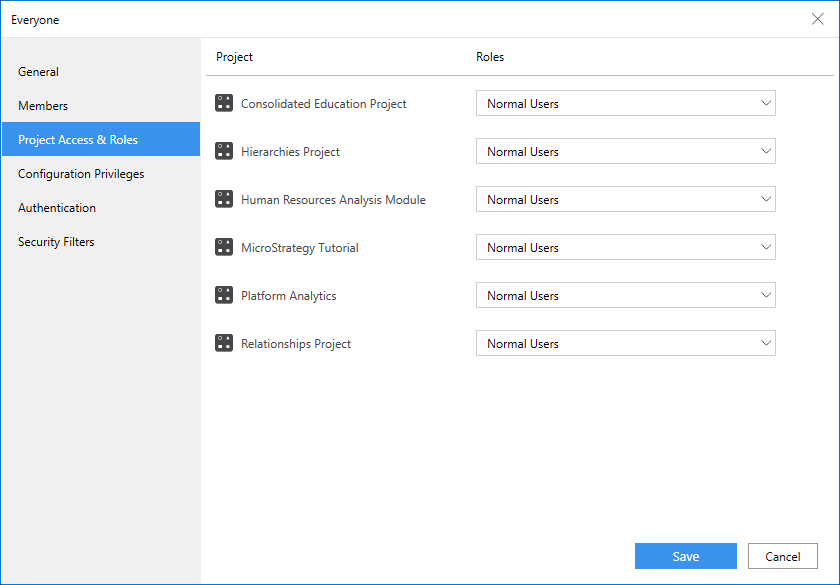
 Project Access & Roles
This page is only available if you are using a version prior to Strategy One (December 2025). Starting in Strategy One (December 2025), this page is replaced by Roles and Privileges.
Apply different roles for each project in an environment. Select one or more roles from the drop-down list.
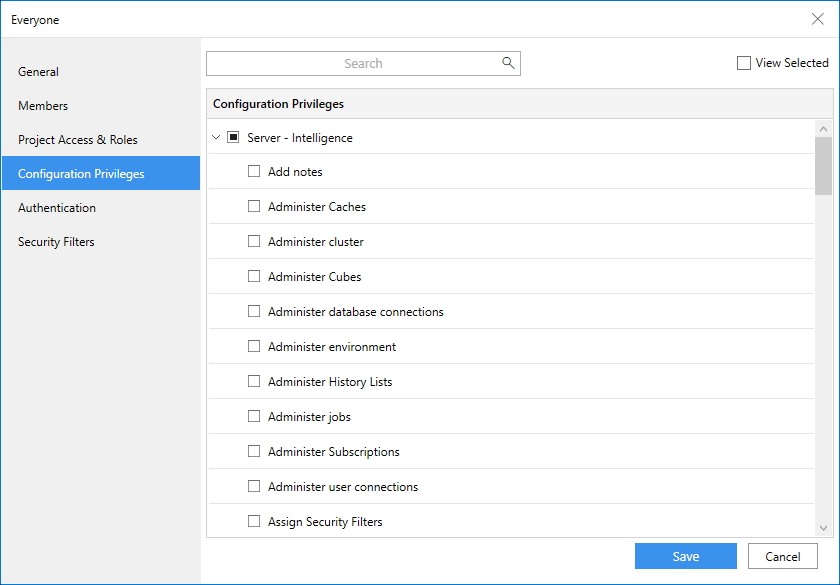
 Privileges
This page is only available if you are using a version prior to Strategy One (December 2025). Starting in Strategy One (December 2025), this page is replaced by Roles and Privileges.
Select the checkbox next to the privilege(s) you want to assign to the user group.
 Roles and Privileges
To apply a privilege to all projects, toggle on Enable next to the privilege.
To apply a privilege to some projects, expand the role drop-down list above each project and choose a security role. For more information on security roles, see Create Security Roles.
- Click Save.
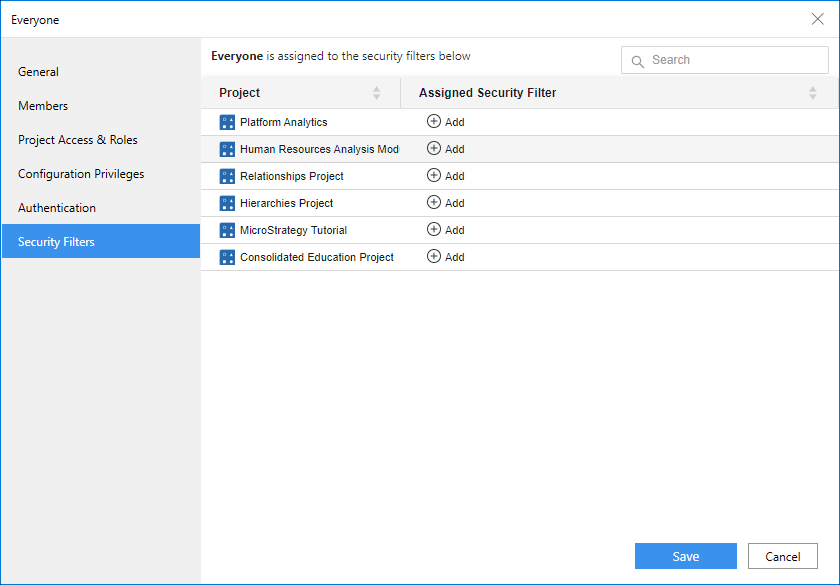
Add security filters to a user group to restrict access to data.
See Manage Security Filters to assign security filters.