
Strategy ONE
Filter a Chapter by Creating a Quick Dynamic Date
Starting in Strategy One (February 2026), for chapter filters in dashboards, you can create quick dynamic dates such as last seven days, today, and month to date when the filter is a date. A dynamic date is a fixed set of dates or a range of dates that are a fixed offset of the current date.
Dynamic dates are not available for filters using parameters, including value parameters and element parameters that use the calendar style.
Create a Quick Dynamic Date in a Chapter Filter
These steps assume that the dashboard already contains a chapter filter on a date attribute.
-
Open the dashboard to filter.
-
If you are viewing the dashboard and want to filter the entire chapter, complete the following steps:
-
Click Filter
 in the toolbar.
 -
In the Filter Data panel, click the date attribute to filter on.
-
-
If you are editing the dashboard and want to filter the entire chapter, complete the following steps:
-
The Editor, Filter, and Format panels are stacked together by default. Click Filter
 to open it.
 -
In the Filter panel, click the date value to filter on.
-
-
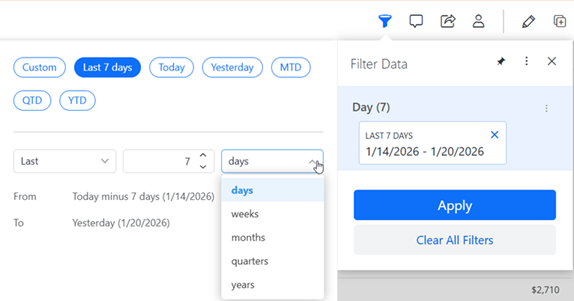
To filter for a dynamic date based on today, such as seven days ago, three weeks from today, or last year on this date, complete the steps below:
-
Click Last 7 Days.
-
In the first drop-down list, select Last or Next.
-
In the second drop-down list, select the offset, the value added to or subtracted from the current date.
-
In the third drop-down list, select the unit of time: Days, Weeks, Months, Quarters, or Years.
-
-
To filter for today, click Today.
-
To filter for yesterday, click Yesterday.
-
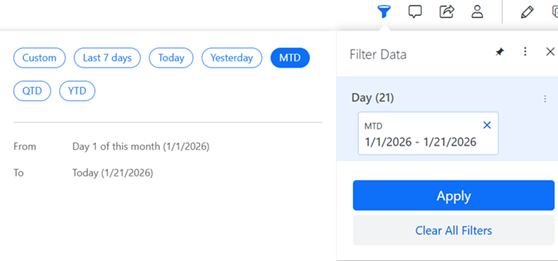
To filter for the first day of the current month to today, click MTD. In the example below, the date range is January 1 through January 21, 2026 (the current date).
-
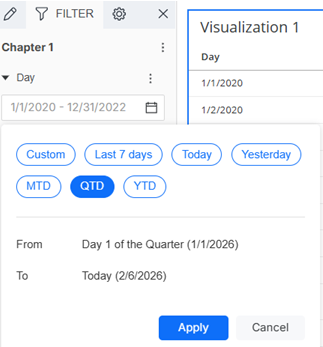
To filter for the first day of the current quarter to today, click QTD. In the example below, the date range is January 1 through February 6, 2026 (the current date) since the quarter begins on January 1.
-
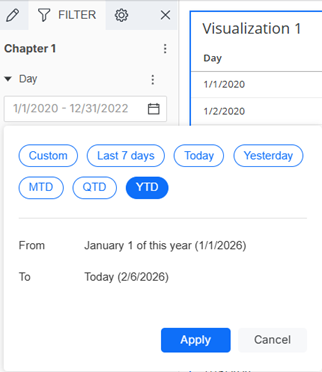
To filter for the first day of the current year to today, click YTD. In the example below, the date range is January 1 through February 6, 2026 (the current date) since the year begins on January 1.
-
Click Apply.