
MicroStrategy ONE
Install Manually on Mac
The instructions below have been adapted from Microsoft Docs: Sideload an add-in in Office on Mac. For more, see the Microsoft documentation.
iPhones and iPads are not supported.
To install MicroStrategy for Office, you need an XML manifest file. You can get it from your MicroStrategy administrator or generate it in Workstation.
See the general prerequisites for Office on Mac in Microsoft Docs: Prerequisites for Office on Mac.
How to Sideload the MicroStrategy for Office Add-in on Mac
- Open Finder.
-
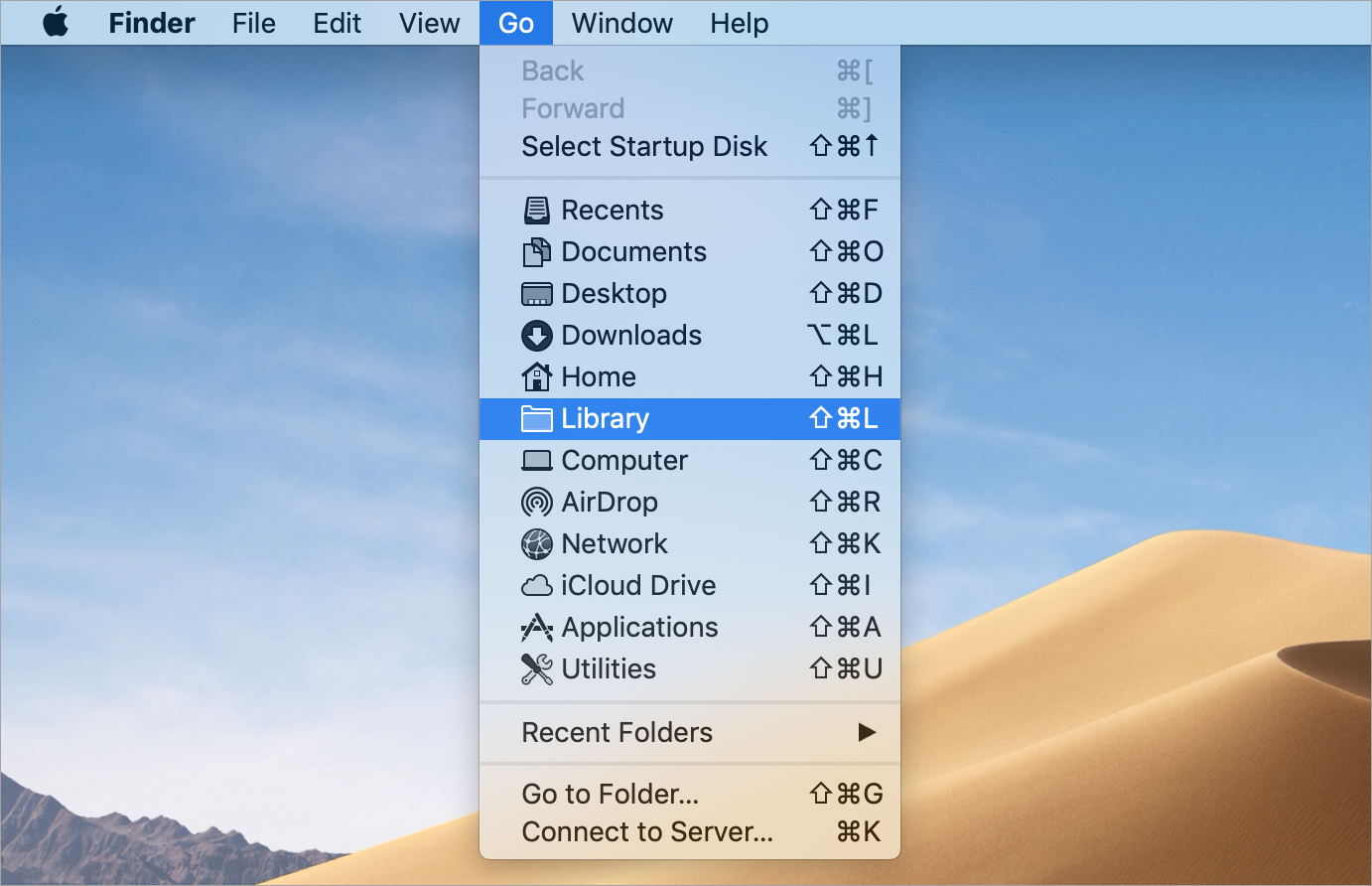
Select Go > Library. You are now in the /Users/<your_username>/Library folder.
-
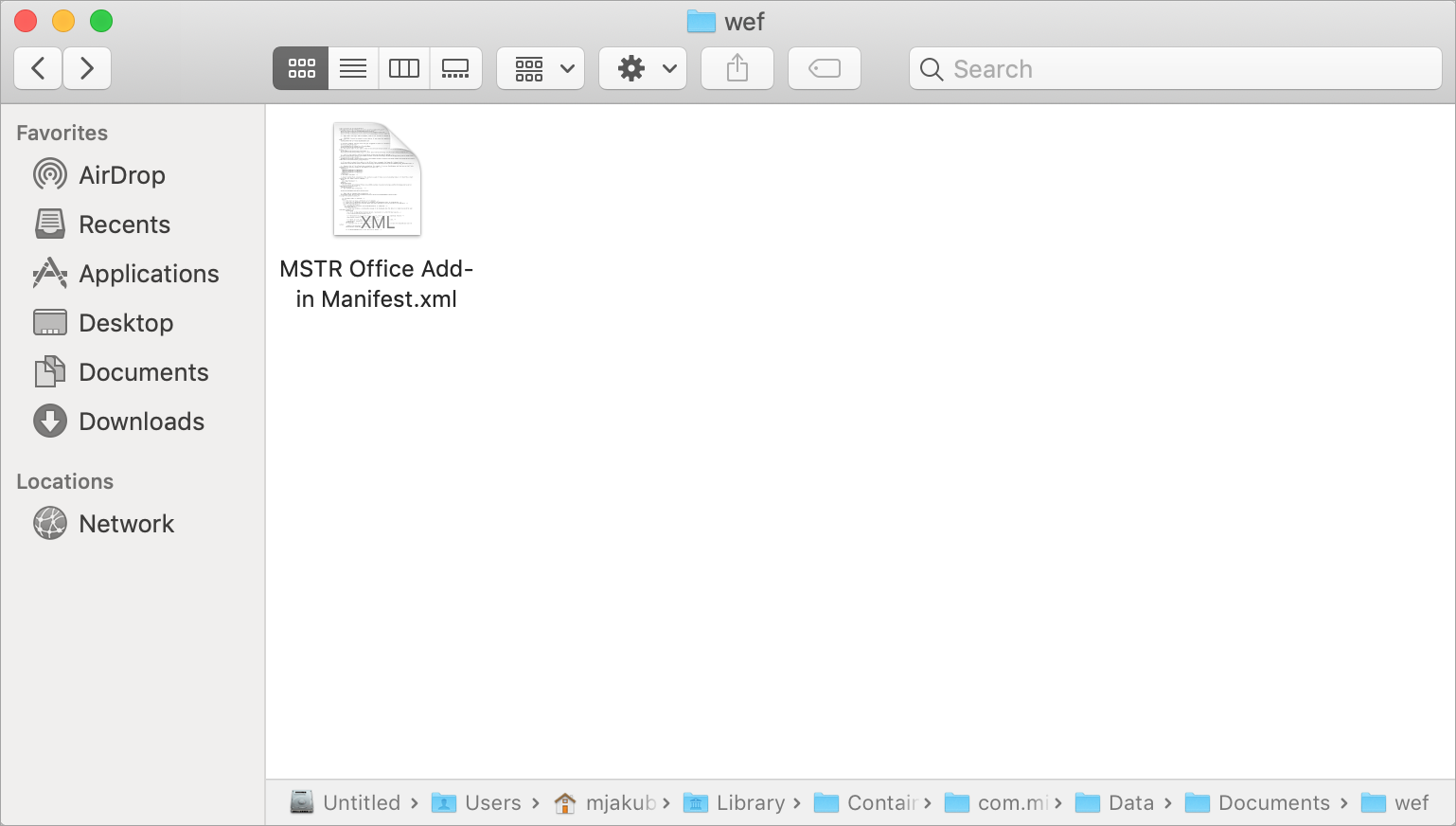
Navigate to: Containers/com.microsoft.Excel/Data/Documents/wef
If the wef folder doesn't exist on your computer, create it manually.
-
Copy the MicroStrategy for Office manifest file to the wef folder.
- Restart Excel.
- Open a new or existing workbook.
-
Select Insert > My Add-ins > MicroStrategy.
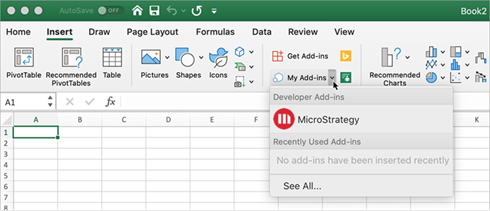
Sideloaded add‑ins only appear within the My Add‑ins drop‑down menu.
-
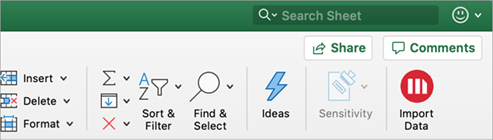
Verify that MicroStrategy for Office appears in Excel.
How to Remove the Sideloaded MicroStrategy for Office Add-in on Mac
- Open Finder.
-
Select Go > Library. You are now in the /Users/<your_username>/Library folder.
-
Navigate to: Containers/com.microsoft.Excel/Data/Documents/wef
-
Delete the MicroStrategy for Office manifest file.
- Restart Excel.