
MicroStrategy ONE
Using interactive dashboards on an iPhone
This functionality is no longer supported in MicroStrategy Mobile. Install MicroStrategy Library to use interactive dashboards on an iPhone.
Some dashboards may be interactive so you can actively explore business data on an iPad. You can add or remove attribute elements from a visualization to change your the data you are viewing. An example of a dashboard is shown below.
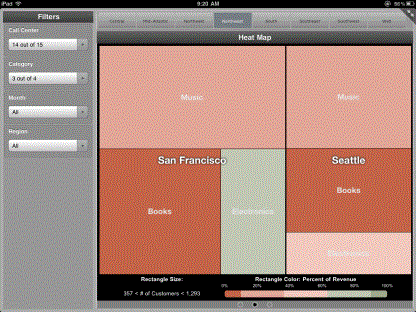
For information on designing dashboards, see the MicroStrategy Web Help.
Prerequisites
To view interactive dashboards using your iPhone, you must enable AirPlay® Mirroring on your device, which allows you to show your device's screen on an external display. The requirements are as follows:
- An iPhone, connected to a Wi-Fi network.
- An Apple TV®, connected to the same Wi-Fi network.
- An external display, connected to the Apple TV.
For steps to enable AirPlay Mirroring, refer to the following Apple Support article: http://support.apple.com/kb/HT5209.
To interact with a dashboard using an iPhone and external display
- Using your iPhone, enable AirPlay Mirroring for the display that you want to use for your dashboard.
- In MicroStrategy Mobile, open the dashboard. The visualizations are shown on the external display, and the Filters section is displayed on your iPhone.
- To include or exclude attribute elements from the dashboard, use the Filters section.
- To interact with the dashboard shown on the external display, at the top-right of your device's screen, tap Control. The control screen opens, which allows you to interact with the dashboard using gestures such as pinch and swipe.