
MicroStrategy ONE
Using interactive dashboards on an iPad
Some dashboards may be interactive so you can actively explore business data on an iPad. You can add or remove attribute elements from a visualization to change your the data you are viewing. An example of a dashboard is shown below.
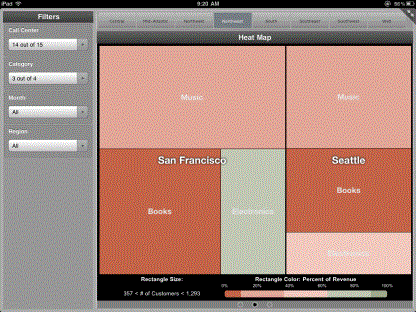
When you run a dashboard, it is displayed as a grid, graph, or a collection of one or more visualizations. Depending on how the dashboard is designed, you may be able to do the following:
- If more than one visualization is available, swipe to the left or right to navigate between visualizations.
- Use the drop-down lists in the Filters pane to include or exclude attribute elements from the dashboard.
- Use the page-by bar at the top to view different groupings, or pages, of data.
- If more than one visualization is available, tap an attribute element in one visualization to filter the display of other visualizations.
- If more than one visualization is available, tap an attribute element in one visualization to highlight matching attribute elements and metrics in other visualizations.
You can also display your dashboard on an external display using AirPlay Mirroring, which allows you to show your iPad's screen on an external display. The requirements are:
- An iPad, connected to a Wi-Fi network.
- An Apple TV®, connected to the same Wi-Fi network.
- An external display, connected to the Apple TV.
For steps to enable AirPlay Mirroring, refer to the following Apple Support article: http://support.apple.com/kb/HT5209.