
MicroStrategy ONE
Analyzing data on a heat map: Heat Map
Some documents may include heat maps, which are visualizations that let you quickly grasp the state and impact of a large number of variables at one time.
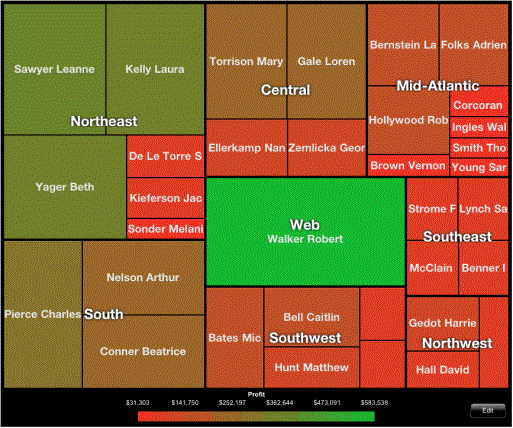
The characteristics of heat maps are described below:
-
The size of each rectangle represents its relative weight.
-
The color of each rectangle represents its relative value.
-
Large areas (displayed with thicker borders) represent different groups of data.
-
Small rectangles represent individual elements.
Depending on how the heat map is designed, you may be able to perform the following actions:
-
To zoom in or out, perform a pinch gesture.
-
To view more information about an element, tap and hold your finger over it.
-
You can temporarily delete elements from your view. Tap the Edit button, then turn on the Enable Delete switch. Tap Close.
-
To delete an element from the Heat Map, tap and hold your finger over it, then tap X.
-
To restore deleted elements, tap the Edit button. Under Restore elements, tap the elements you want to restore. To restore all elements, tap All. When you are done, tap Restore.