Strategy One
Customize the Visualization's Title Bar
A visualization's title bar can be modified in the following ways:
Show or Hide the Title Bar
Displaying a visualization's title bar allows you to provide a descriptive title for the visualization.
To show or hide the title bar:
-
Hover the cursor over the visualization to modify.
Click More
 in the top right.
 -
Choose Show Title Bar to display the title bar.
or
Choose Hide Title Bar to hide the title bar.
Display Two Lines on the Title Bar
Starting in Strategy One (September 2025), dashboard authors can customize a visualization's title bar to display a secondary title.
To display two lines in the title bar:
-
Right-click the visualization and select Format.
-
On the Format panel, select the Title and Container icon
 .
. -
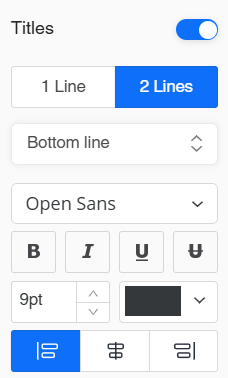
Under Titles, select 2 Lines.

A secondary title is added to the visualization's title bar.
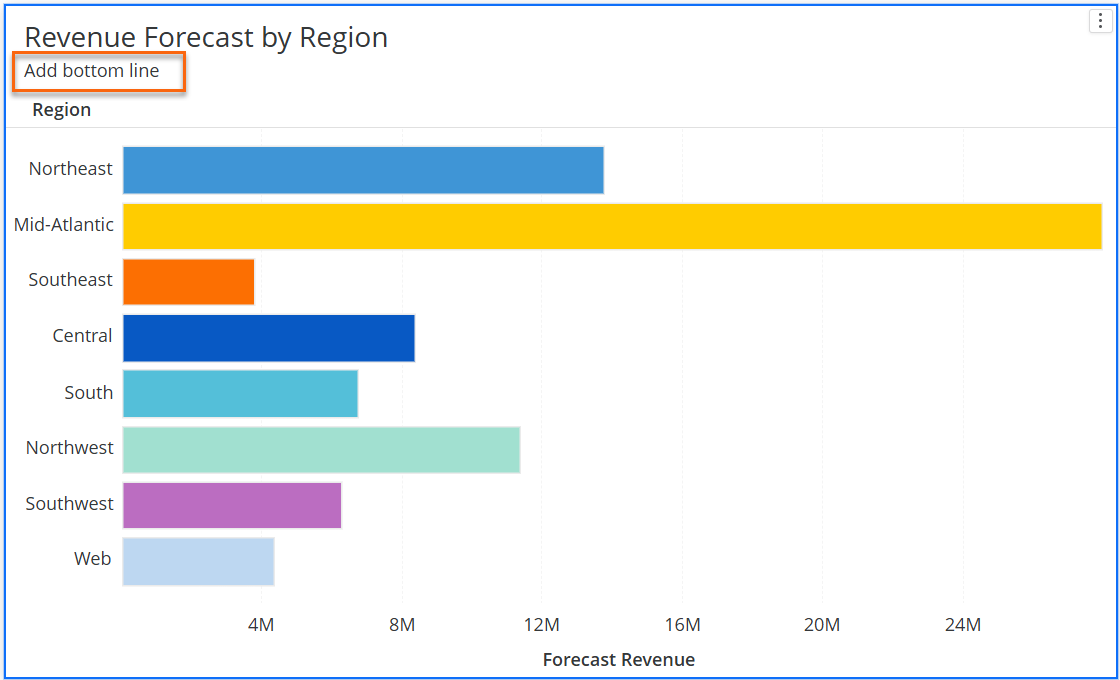
-
To format the secondary title, select Bottom line from the drop down list.
- Select the desired font, style, size, color, and alignment for the text.
Personalize Action Buttons on the Title Bar
Starting in Strategy One (September 2025), dashboard authors can customize a visualization's title bar by enabling action buttons.
To enable or disable the action buttons on the title bar:
-
Right-click the visualization and select Format.
-
On the Format panel, select the Title and Container icon
. -
Next to Title buttons, use the switch to enable or disable the buttons.

-
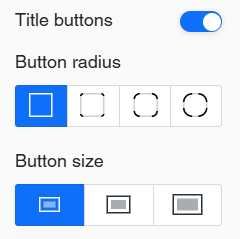
To format the layout of the title buttons, you can:
- Adjust the Button radius
- Select the Button size
-
For each individual button, use the icons next to the button to:
- Hidethe button
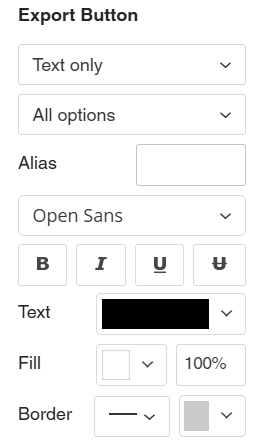
- Format the button
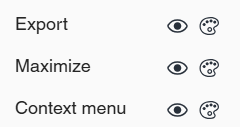
The formatting options vary based on the button. The example below is for the Export Button.