Strategy ONE
Creating a derived metric using the Input Metric Formula dialog box
The Input Metric Formula dialog box allows you to use functions, operators, and report objects to create derived metrics. You can create any type of derived metric by defining derived metric expressions using the Input Metric Formula dialog box. This includes shortcut metrics that are described in Using rank and percent-to-total metric analysis .
The procedure below describes the high-level steps for creating a derived metric with the Input Metric Formula dialog box. For an example of creating a derived metric, see Example: Average profit per customer with transactions.
Prerequisites
- You need the Create Derived Metrics (Developer) and/or the Web Create Derived Metrics and Derived Attributes (Web) privileges. These privileges are part of OLAP Services.
To create a derived metric with the Input Metric Formula dialog box
For details on each option for any of the steps below, click Help.
-
Open a report in MicroStrategy Developer or Web.
If you are running Strategy Developer on Windows for the first time, run it as an administrator.
Right‑click the program icon and select Run as Administrator.
This is necessary in order to properly set the Windows registry keys. For more information, see KB43491.
- Open the Input Metric Formula dialog box to create a new metric by performing one of the following steps:
- In Developer: Choose Insert > New Metric.
- In Web: Choose Data > Insert New Metric.
- The pane on the left displays the Report Objects which shows the components (attributes, attribute forms, metrics, custom groups, consolidations, and so on) included in the report, even if the components are not displayed in the report grid.
- In Developer: Double-click or drag-and-drop an object to use it to define the derived metric.
- In Web: Select an object and click the arrow to use it to define the derived metric. This moves the object to the window on the right.
- Add functions and operators by typing their syntax or characters. You can also click the fx button to open the Insert Function Wizard, which guides you through adding functions and operators.
- Continue to add report components, functions, operators, constant values, and other valid metric formula objects to complete your formula.
-
To add the level at which to calculate the metric, enclose the metric formula in parentheses. Type the attribute name between curly braces
{}after the metric formula. If the attribute name contains a space, enclose the name within brackets[]. For example,([Unit Cost] * [Units Sold]) {[Customer Name]}, where Unit Cost and Units Sold are metrics and Customer Name is an attribute. This is a valid expression.For more information on metric levels, see the Advanced Reporting Help.
- After you have created the expression, you can determine whether the expression is valid by performing one of the following steps:
- In Developer: Click Validate. An error is displayed if the expression is invalid.
- In Web: Click Apply. An error is displayed if the expression is invalid.
-
In the Metric Name (Developer) or Name (Web) field, enter a name for the new metric.
When naming a MicroStrategy object, you must follow the naming convention rules for your particular database platform. Using a word reserved by your database platform can result in an error when the report is executed. Refer to your database documentation for a list of these database-reserved words.
- Click OK. The Input Metric Formula dialog box closes and the derived metric is added to the report.
To format the values or headers of a derived metric, see Formatting derived metrics.
Example: Average profit per customer with transactions
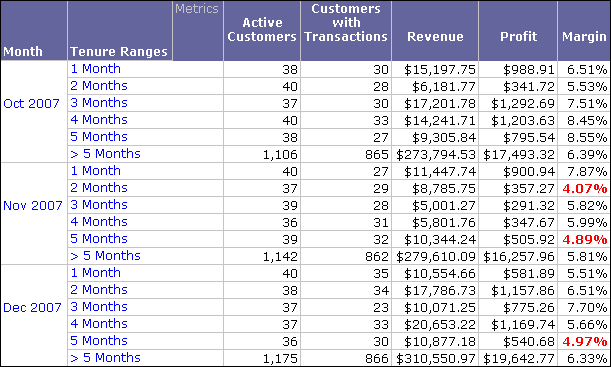
In this example, a derived metric is created for the Customer Profitability - By Tenure report from the Customer Analysis Module. This report provides monthly trends in customer information based on tenure, as shown below.
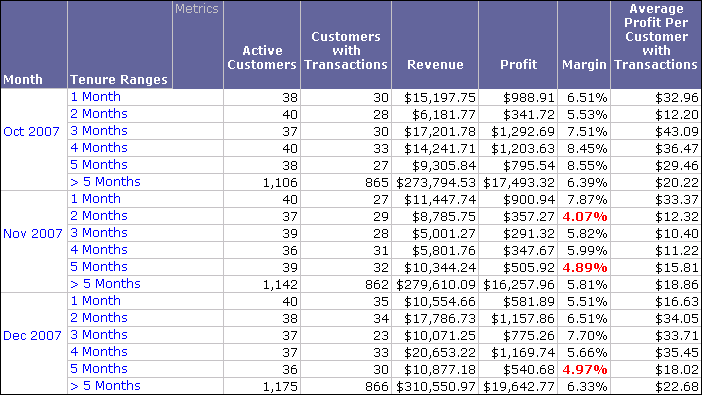
A derived metric is created to display the average profit generated per customer with transactions. The procedure below describes how to create and format this derived metric for the report shown above.
To create an average profit per customer with transactions derived metric
- In MicroStrategy Developer, log in to the Customer Analysis Module.
- Browse to the Customer Profitability - By Tenure report, right-click the report, and then select Run Report. The Choose from all elements of 'Quarter' prompt opens.
- Keep the default prompt answer of 2007 Q4 and click Finish. The Customer Profitability - By Tenure report opens in Grid View.
- Choose Insert > New Metric. The Input Metric Formula dialog box opens.
- In the Metric Name field, type Average Profit Per Customer with Transactions.
To create the expression for the derived metric
You create this expression using the following steps:
(Profit / [Customers with Transactions])
- Drag-and-drop the Profit metric from the list of Report Objects in the left pane to the metric definition area on the right.
- Click the division sign (
/) on the operators and functions toolbar. The division sign should be inserted to the right of the Profit metric. - Drag-and-drop the Customer with Transactions metric from the list of Report Objects to the metric definition area on the right. It should be placed on the right side of the division sign (
/). - Click Validate. A green check is displayed in the right-hand corner below the metric definition area, indicating that the metric definition is valid.
- Click OK . The new metric column for the derived metric is displayed in the report.
To format the values of the new derived metric
The metric is included without any value formatting. Follow the steps below to format the metric values to be displayed with a currency format.
- Right-click the Average Profit per Customer with Transactions derived metric, point to Formatting, and select Average Profit per Customer with Transactions Values. The Format Cells dialog box opens.
- On the Number tab, from the Category pane, select Currency.
- Keep all defaults for the Currency format and click OK. You are returned to the report which is shown below.