
MicroStrategy ONE
Shortcut-to-a-report qualification
The results of an existing report can be used as a filter for another report. You can use the first report itself as a filter inside a new report. This type of filter is called a shortcut-to-a-report qualification.
To be used as a shortcut-to-a-report qualification, a report cannot contain any of the following objects or be of any of the following report types:
- Consolidations
- Custom groups
- Freeform SQL reports: Reports created using MicroStrategy's Freeform SQL functionality
- MDX cube reports: Reports that draw their data from an MDX cube source such as SAP Business Intelligence Warehouse (SAP BW), Microsoft Analysis Services (Analysis Services), or Hyperion Essbase (Essbase)
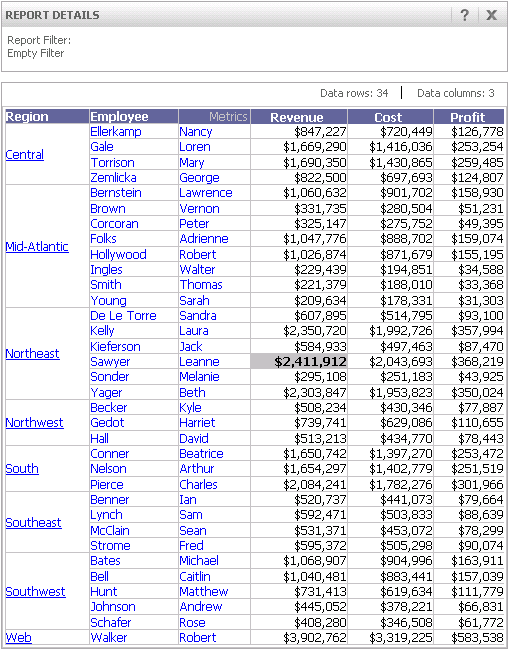
For example, consider the Basic Report shown below, which has no filter. Notice that Leanne Sawyer has earned $2,411,912 in revenue.
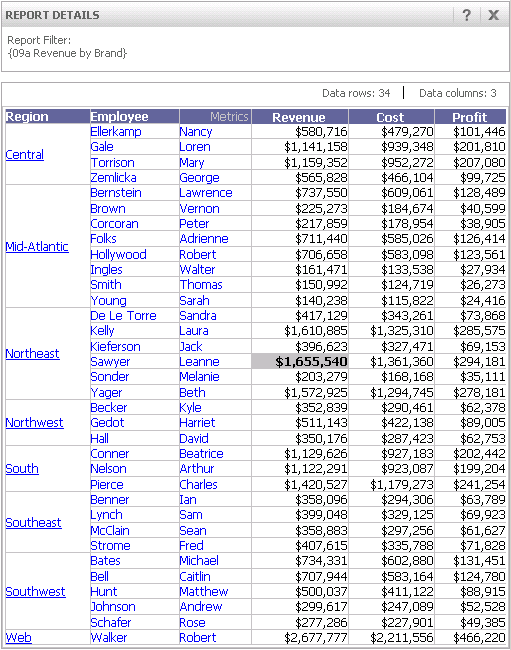
Create a new filter. Drag and drop the Revenue By Brand report into the right pane of the new filter, and save. Open the Basic Report and drag and drop your newly-created filter to the Report Filter pane, to use the Revenue By Brand report as a filter in the Basic Report. Finally, re-execute the Basic Report.
With its new filter, the Basic Report displays the revenue generated by each employee only for those brands specified in the results of the Revenue by Brand report. The filtered Basic Report is shown below. Notice that Leanne Sawyer has now earned only $1,655,540 in revenue.
You can perform the example above on your own. The Basic Report and the Revenue By Brand report are located in Shared Reports\MicroStrategy Platform Capabilities\Advanced Reporting Guide.
You can also use a report as a filter and then add additional qualifications to expand the overall filter definition. For example, you can take the result set of one report showing all customers in the Southwest region, place that result set as a filter into a new report, and add a new filter qualification for active customers in the current year. The new report displays all currently active customers in the Southwest region.
This approach shows you the value of creating some basic, relatively simple reports in your project, such as a report for customers in a specific region. Then you can make use of these basic reports within shortcut-to-a-report filters to make the filter creation process quicker.
Shortcut-to-a-report qualification and OLAP Services
If you have MicroStrategy OLAP Services, be aware that a report's view definition does not affect how the report is used in a shortcut-to-a-report qualification. A report's data definition is the query that is sent to the database to retrieve information for the report, whereas the report's view definition determines how much of the retrieved information is displayed in the report. When you use a report as a filter, the report's entire data definition is considered; any view definitions do not influence the filter conditions.
For an introduction to MicroStrategy OLAP Services, see Determining whether you have OLAP Services.
Creating a filter based on the results of a report: Shortcut-to-a-report qualifications
Use the following steps to create a simple shortcut-to-a-report qualification.
To use a report as a filter in a shortcut-to-a-report qualification
- In MicroStrategy Web, on the Home page, click New Filter.
- In the pane on the left, navigate to the report that you want to use as a filter. Alternatively, type the name of the report in the Find field.
-
Right-click the report and select Add to Filter. Alternatively, drag and drop the report to the right pane.
You cannot use a report containing a consolidation or custom group, a Freeform SQL report, or an MDX cube report as a shortcut to a report.
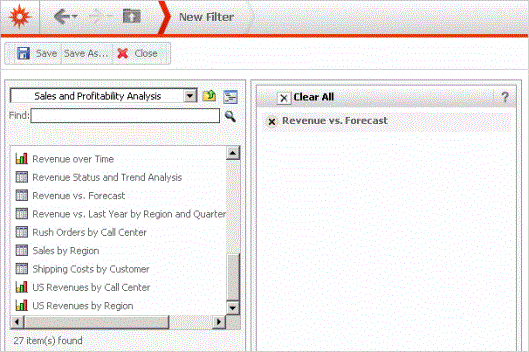
The report is added to the right pane as shown in the image below:
- Click Save As, navigate to the folder where you want to save the filter, type a Name and Description for the filter, and click OK.
The shortcut-to-a-report filter you created can now be added to a report. For steps, see Reports: Adding a filter to a report.