
MicroStrategy ONE
MicroStrategy Repository アップグレードのガイドラインとトラブルシューティング
Repository アップグレードの概要
MicroStrategy スイートの継続的なセキュリティと安定性を実現するために、MicroStrategy Repository は 2021 Update 10 で PostgreSQL をバージョン 14.7 にアップグレードしています。
今回のアップグレードの内容は次のとおりです。
-
PostgreSQL の旧バージョンに存在していた既知のセキュリティ脆弱性を解決します
-
製品の急な停止を防止します
-
PostgreSQL の最新リリースによる追加機能と強化されたパフォーマンスを活用できます
このアップグレード ワークフローでは、リモート リポジトリではなく、MicroStrategy のローカルにインストールされた PostgreSQL のみが対象です。
このアップグレードは 2 つの部分で構成されています。
-
PostgreSQL サーバー バイナリのアップデート
-
データの移行
このアップグレードでは、PostgreSQL のフォルダー構造は変更されないため、PostgreSQL を使用するコンポーネントに影響はありません。
すぐに使用可能なMicroStrategy Repository のバックアップに使用できるユーティリティ/ツールがいくつかあります。
-
ネイティブ PostgreSQL バックアップ/復元ユーティリティ
pg_dump, pg_dumpall -
MicroStrategy ブランド PostgreSQL バックアップ/復元ユーティリティ
mstr_pg_dump, mstr_pg_dumpall
MicroStrategy Repository のデータベース
Windows および Linux にインストールしたばかりの環境では、未設定の MicroStrategy Repository に以下のデータベースがインストールされています。
| データベース名 | Windows 高速インストール | Windows カスタム インストール | Linux | 対応する MicroStrategy コンポーネント |
|---|---|---|---|---|
advdw_wh
|
ü | MicroStrategy チュートリアル プロジェクトで使用 | ||
mstr_collab
|
ü | ü | ü | MicroStrategy Collaboration Server |
mstr_library
|
ü | ü | ü | MicroStrategy Library Server |
operationaldm_wh
|
ü | MicroStrategy チュートリアル プロジェクトで使用 | ||
platform_analytics_wh
|
ü | ü | ü | Platform Analytics プロジェクト |
poc_metadata
|
ü | チュートリアル メタデータ | ||
tutorial_wh
|
ü | チュートリアル ウェアハウス |
Linux インストールおよび Windows カスタム インストールでは、選択したコンポーネントの対応するウェアハウスのみが MicroStrategy Repository にインストールされます。たとえば、Platform Analytics コンポーネントをインストールしていない場合は、 platform_analytics_wh がMicroStrategy Repository にありません。
MicroStrategy Repository 管理ツール
MicroStrategy Repository 管理ツールは、 MicroStrategyユーザーが DBAdminConfig.yaml。
MicroStrategy Repository 管理ツールの詳細は、「リポジトリの管理」を参照してください。
MicroStrategy Repository 管理ツールのバックアップ操作は、 DBAdminConfig.yaml。MicroStrategy Repository 内のすべてのデータベースをバックアップするには、データベース名を DBAdminConfig.yaml。に列挙されているデータベース名のみ DBAdminConfig.yaml は、このツールによってバックアップされます。
デフォルトでは、このツールでデータベースにアクセスする場合、mstr データベース ユーザー名とその暗号化されたパスワードが使用されます。場所は DBAdminConfig.yaml。パスワードが変更されると、ツールは想定どおりに動作しない可能性があります。
ネイティブ PostgreSQL バックアップ/復元ユーティリティ
ネイティブ PostgreSQL バックアップ/復元ユーティリティを使用して、MicroStrategy Repository をバックアップ/復元できます。このツールは MicroStrategy Repository に標準装備されています。
-
pg_dump単一のデータベースをダンプします。例:
コピー# To dump a database called mydb into an SQL-script file:
pg_dump mydb > db.sql -
pg_dumpall指定のクラスター内のすべてのデータベースをバックアップし、ロールやテーブルスペースの定義などのクラスター全体のデータも保存します。例:
コピー# To dump all databases
pg_dumpall > db.out -
復元には、以下を使用します
psqlまたはpg_restore。例:
コピー# To reload pg_dump file into a (freshly created) database named newdb
psql -d newdb -f db.sql
# To restore pg_dumpall file db.out
psql -f db.out postgres
バックアップ オプションのダンプ パラメーターがたくさんあるため、自分のニーズに応じて使い分けることができます。
パラメーターのリストと使用例については、 pg_dump 、pg_dumpall、、および pg_restore。
Windows
デフォルト パス: C:\Program Files (x86)\Common Files\MicroStrategy\Repository\pgsql\bin
例:
 #dump mstr_collab
 pg_dump -d mstr_collab -Umstr > mstr_collab.sql

 #dump the whole postgres cluster
 pg_dumpall -Umstr > postgres.sql
Linux
デフォルト パス: /opt/mstr/MicroStrategy/install/Repository/postgres11/bin
Linux でユーティリティを実行する前に、以下の準備が必要です。
-
ソース:
setenv.shファイルの下/opt/mstr/MicroStrategy/install/Repository/bin。このファイルを配置しなかった場合、以下のエラーが発生します。
Error while loading shared libraries: libpq.so.5: cannot open shared object file:No such file or directory.
-
を使用する UNIX ドメイン ソケットを定義します
/tmpネイティブ PostgreSQL バック ユーティリティが/var/run/postgresql/デフォルト パス。パスが宣言されていない場合、以下のエラーが発生します。
pg_dump: データベース "mstr" への接続に失敗しました: サーバー: に接続できませんでした。No such file or directory.Is the server running locally and accepting connections on Unix domain socket "/var/run/postgresql/.s.PGSQL.5432"?
例:
#source setenv.sh
source /opt/mstr/MicroStrategy/install/Repository/bin/setenv.sh

#declare unix-domain socket and use pg_dump to dump metadata
cd /opt/mstr/MicroStrategy/install/Repository/postgres11/bin
./pg_dump -h /tmp -d poc_metadata -Umstr > md.dump

#dump the whole postgres cluster
./pg_dumpall -h /tmp -Umstr > postgres.dump
MicroStrategy ブランド PostgreSQL バックアップ/復元ユーティリティ
MicroStrategy は Linux に対して「ブランド」バックアップ/復元ユーティリティを提供しています。このユーティリティは、ネイティブ PostgreSQL バックアップ/復元ユーティリティをベースに作成されています。ソースは必要ありません setenv.sh およびこのツールで UNIX ドメイン ソケットを定義します
このユーティリティはネイティブ PostgreSQL バックアップ/復元ユーティリティをベースに作成されているため、ネイティブ PostgreSQL バックアップ/復元ユーティリティで使用するパラメーターも使用できます。
デフォルト パス: /opt/mstr/MicroStrategy/install/Repository/bin
例:
#dump metadata
cd /opt/mstr/MicroStrategy/install/Repository/bin
./mstr_pg_dump -d poc_metadata -Umstr > md.dump

#dump the whole postgres cluster
./mstr_pg_dumpall -Umstr > postgres.dump
プラットフォーム インストーラーによる MicroStrategy Repository のアップグレード
Linux
-
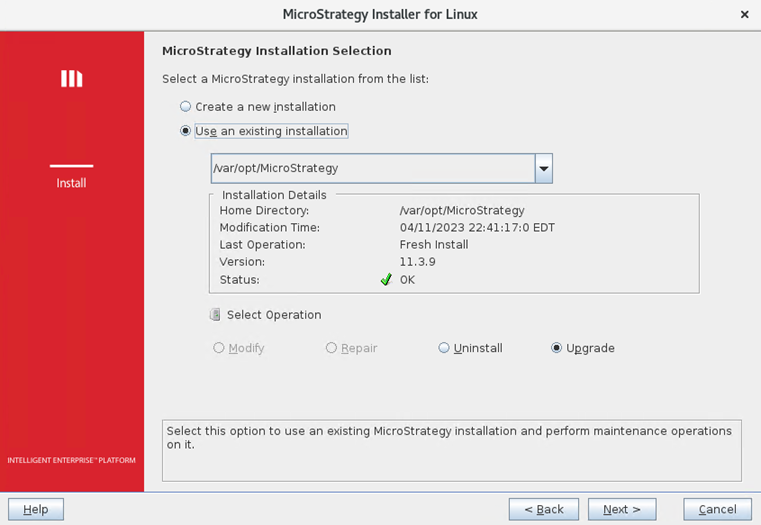
インストーラーを起動し、[アップグレード] を選択して、ローカルの MicroStrategy のバージョンを 2021 Update 10 にアップグレードします。
-
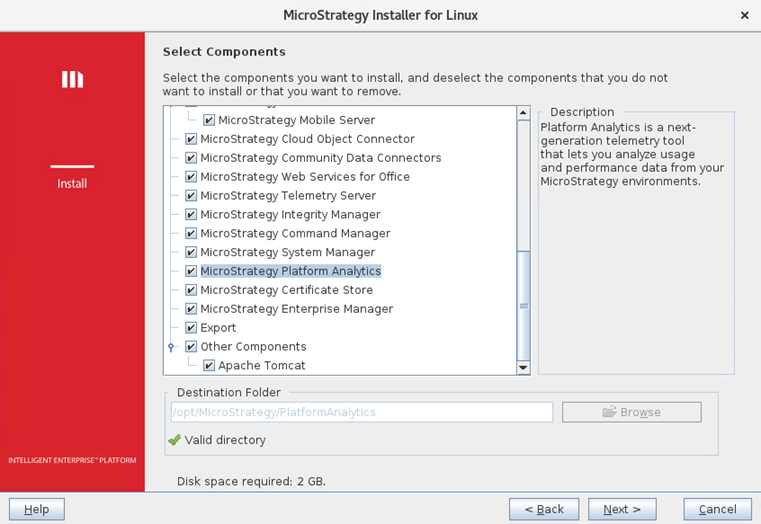
以前のインストールで MicroStrategy Platform Analytics を選択していた場合、[コンポーネントを選択] で自動的に選択されます。アップグレードするコンポーネントを確認し、[次へ] をクリックします。
-
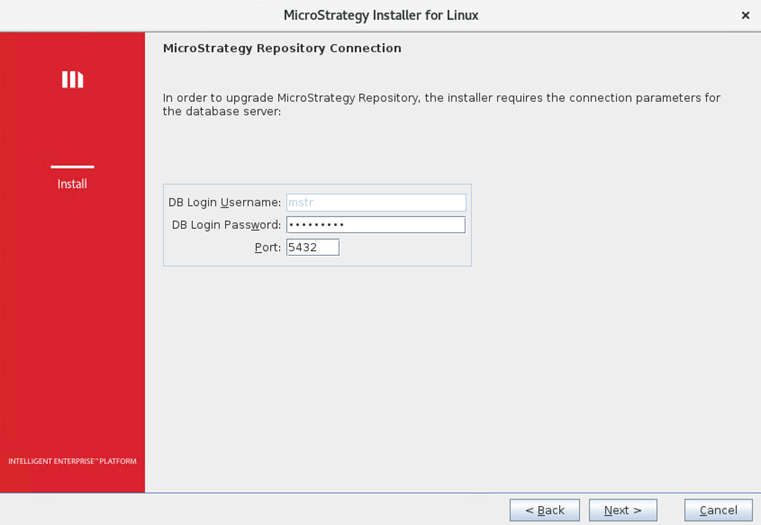
MicroStrategy Repository への接続情報が前回のインストール以降に変更されている場合、データベース ログインのユーザー名、パスワード、およびポートを入力するように要求されます。フィールドに内容を入力し、[次へ] をクリックします。
-
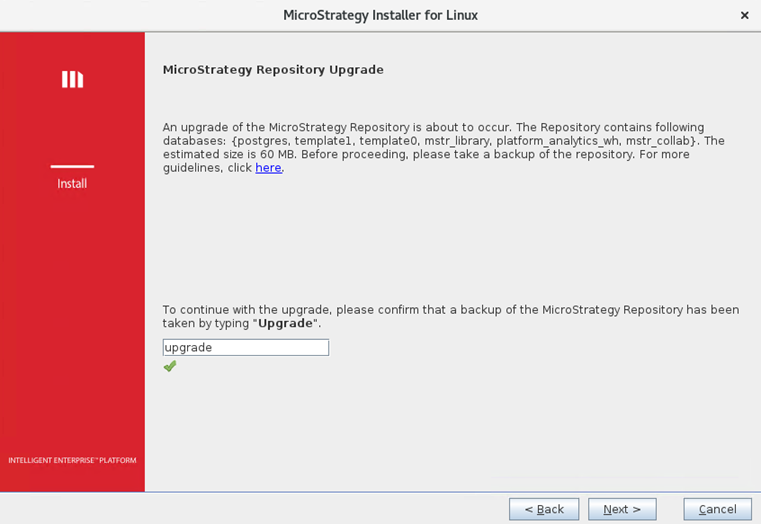
操作を進める前に、リポジトリのバックアップが要求されます。リポジトリのバックアップと復元の詳細は、上記のセクションを参照してください。アップグレードを進めるには、「upgrade」と入力してリポジトリのバックアップを取ったことを確認する必要があります。[次へ] をクリックします。
-
インストーラーは、システム上に十分なディスク空き容量があるかどうかを確認します。空き容量が不足している場合は、満たしていない要件が表示され、アップグレードが中断します。
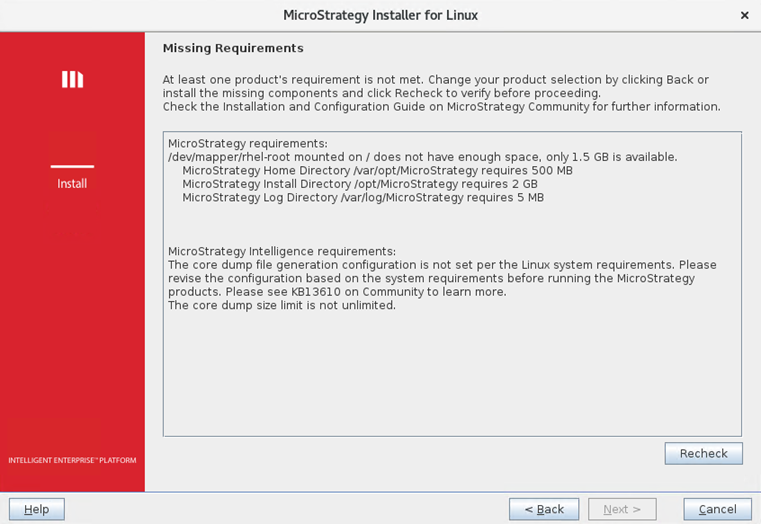
-
十分なディスク容量がある場合、リポジトリに加え、他の MicroStrategy コンポーネントのアップグレード処理も続行されます。ただし、リポジトリのアップグレードに失敗した場合は、アップグレード全体が中断し、以下の画面が表示されます。
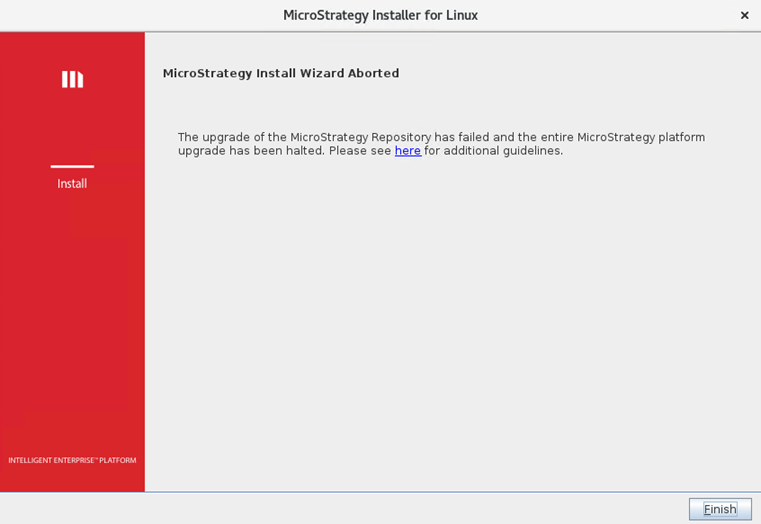
根本的な原因の分析およびトラブルシューティングの詳細な手順は、リンクをクリックしてください。問題が解決したら、インストールを再実行してアップグレードを完了します。
チェック install.log / logs フォルダー (例: /var/log/MicroStrategy/) を確認して、以下に示す PostgreSQL アップグレード ログが含まれているかを確認します。ログが存在する場合、アップグレードは成功です。
PostgreSQL アップグレード ログの例:
12 Apr 2023, 07:29:41 AM:INFO: Configuring pg_hba.conf file completed
12 Apr 2023, 07:29:49 AM:INFO: Successfully stopped MicroStrategy Repository Administration.
12 Apr 2023, 07:29:49 AM:INFO: Successfully stopped PostgreSQL.
12 Apr 2023, 07:29:49 AM:INFO: Backing up PostgreSQL bin files.
12 Apr 2023, 07:29:49 AM:INFO: Backing up pgdata files.
12 Apr 2023, 07:29:49 AM:INFO: Backing up Repository Administration Tool files.
12 Apr 2023, 07:29:49 AM:INFO: MicroStrategy Repository bin files and pgdata backup completed.
12 Apr 2023, 07:29:49 AM:INFO: Extracting new postgres binary files.
12 Apr 2023, 07:29:50 AM:INFO: Installing Repository files...
12 Apr 2023, 07:29:50 AM:INFO: Copying fileset RepositoryLinuxRepositoryInstallPath files...
12 Apr 2023, 07:29:56 AM:INFO: Initializing PostgreSQL
12 Apr 2023, 07:29:57 AM:INFO: Configuring postgresql.conf file.
12 Apr 2023, 07:29:57 AM:FINE: Using port 54302 temporarily for PostgreSQL upgrade.
12 Apr 2023, 07:29:57 AM:INFO: Configuring postgresql.conf file completed
12 Apr 2023, 07:29:57 AM:INFO: Checking postgres upgrade compatibility.
12 Apr 2023, 07:29:58 AM:INFO: Upgrade compatibility check has been passed.
12 Apr 2023, 07:29:58 AM:INFO: Starting PostgreSQL upgrade.
12 Apr 2023, 07:30:04 AM:INFO: PostgreSQL upgrade completed.
12 Apr 2023, 07:30:04 AM:INFO: Restoring old cluster's configuration files.
12 Apr 2023, 07:30:04 AM:INFO: Restoring pg_hba.conf file.
12 Apr 2023, 07:30:04 AM:INFO: Restoring pg_hba.conf file completed.
12 Apr 2023, 07:30:04 AM:INFO: Restoring postgresql.conf file.
12 Apr 2023, 07:30:04 AM:INFO: Restoring postgresql.conf file completed.
12 Apr 2023, 07:30:04 AM:INFO: Checking MicroStrategy Repository status
12 Apr 2023, 07:30:05 AM:INFO: Started PostgreSQL.
12 Apr 2023, 07:30:05 AM:INFO: Cleaning up files under Repository.
Windows
-
インストーラーを起動し、ローカルの MicroStrategy のバージョンを 2021 Update 10 にアップグレードします。
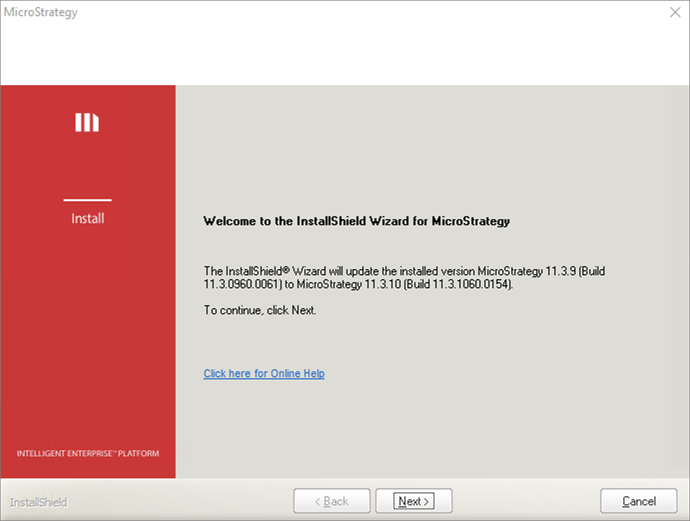
-
以前のインストールで MicroStrategy Repository を選択していた場合、[コンポーネントを選択] で自動的に選択されます。アップグレードするコンポーネントを確認し、[次へ] をクリックします。
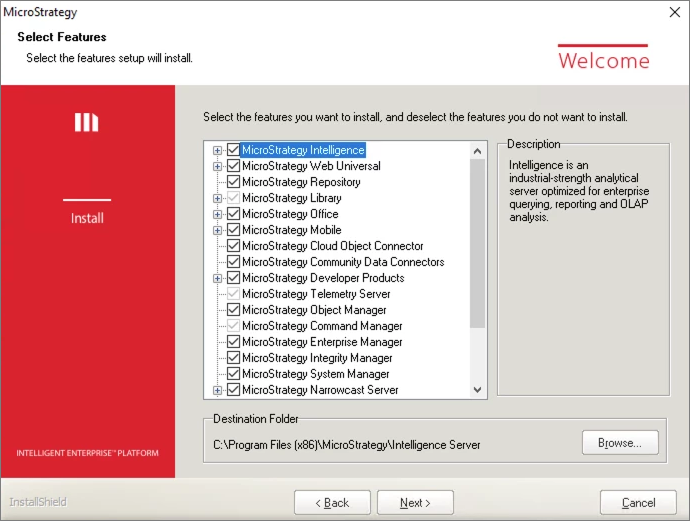
-
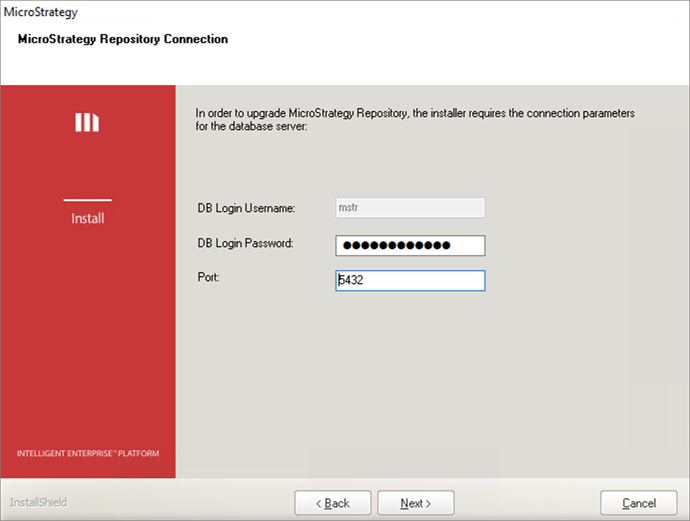
MicroStrategy Repository への接続情報が前回のインストール以降に変更されている場合、データベース ログインのユーザー名、パスワード、およびポートを入力するように要求されます。フィールドに内容を入力し、[次へ] をクリックします。
-
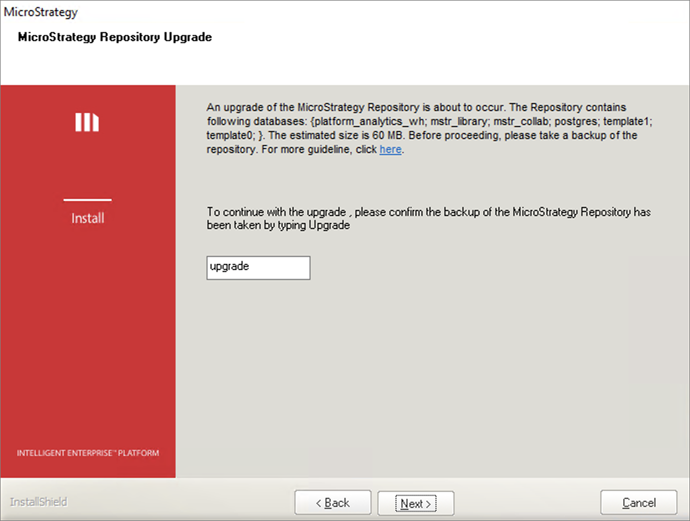
操作を進める前に、リポジトリのバックアップが要求されます。リポジトリのバックアップと復元の詳細は、上記のセクションを参照してください。アップグレードを進めるには、「upgrade」と入力してリポジトリのバックアップを取ったことを確認する必要があります。[次へ] をクリックします。
-
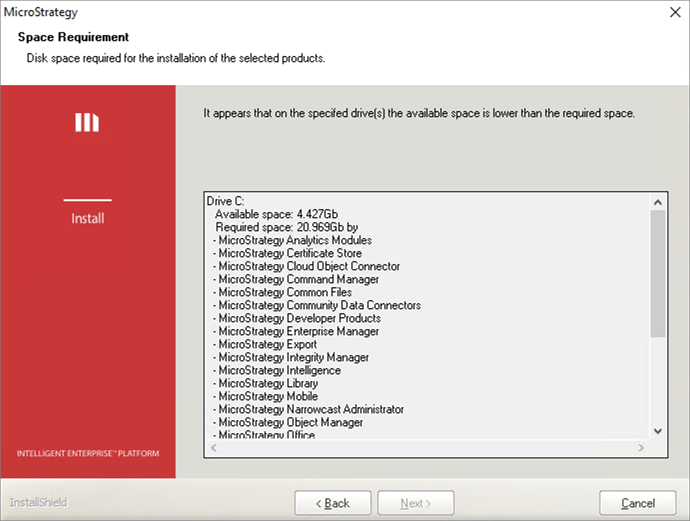
インストーラーは、システム上に十分なディスク空き容量があるかどうかを確認します。空き容量が不足している場合は、容量の要件が表示され、アップグレードが中断します。
-
十分なディスク容量がある場合、リポジトリに加え、他の MicroStrategy コンポーネントのアップグレード処理も続行されます。ただし、リポジトリのアップグレードに失敗した場合は、アップグレード全体が中断し、以下の画面が表示されます。
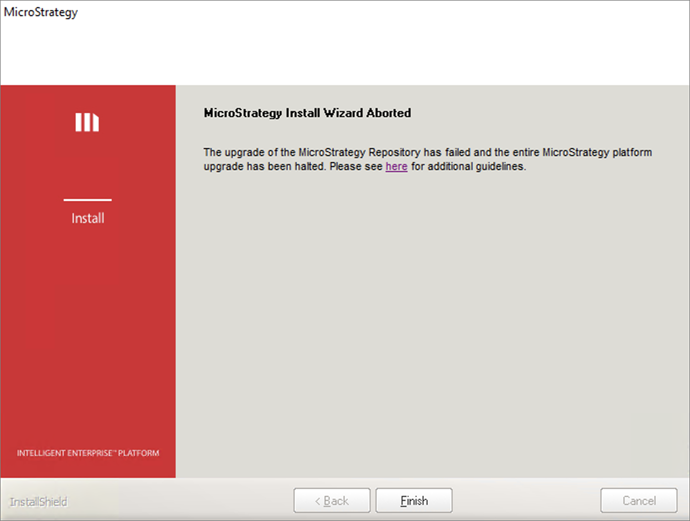
根本的な原因の分析およびトラブルシューティングの詳細な手順は、リンクをクリックしてください。問題が解決したら、インストールを再実行してアップグレードを完了します。
チェック install.log MicroStrategyインストール フォルダー内の (例: C:\Program Files (x86)\Common Files\MicroStrategy) を確認して、以下に示す PostgreSQL アップグレード ログが含まれているかを確認します。ログが存在する場合、アップグレードは成功です。
PostgreSQL アップグレード ログの例:
Performing Consistency Checks

-----------------------------
Checking cluster versions                                   ok
Checking database user is the install user                  ok
Checking database connection settings                       ok
Checking for prepared transactions                          ok
Checking for reg* data types in user tables                 ok
Checking for contrib/isn with bigint-passing mismatch       ok
Checking for tables WITH OIDS                               ok
Checking for invalid "sql_identifier" user columns          ok
Creating dump of global objects                             ok
Creating dump of database schemas
                                                            ok
Checking for presence of required libraries                 ok
Checking database user is the install user                  ok
Checking for prepared transactions                          ok

If pg_upgrade fails after this point, you must re-initdb the
new cluster before continuing.

Performing Upgrade
------------------
Analyzing all rows in the new cluster                       ok
Freezing all rows in the new cluster                        ok
Deleting files from new pg_xact                             ok
Copying old pg_xact to new server                           ok
Setting next transaction ID and epoch for new cluster       ok
Deleting files from new pg_multixact/offsets                ok
Copying old pg_multixact/offsets to new server              ok
Deleting files from new pg_multixact/members                ok
Copying old pg_multixact/members to new server              ok
Setting next multixact ID and offset for new cluster        ok
Resetting WAL archives                                      ok
Setting frozenxid and minmxid counters in new cluster       ok
Restoring global objects in the new cluster                 ok
Restoring database schemas in the new cluster
                                                            ok
Adding ".old" suffix to old global/pg_control               ok

If you want to start the old cluster, you will need to remove
the ".old" suffix from C:/Program Files (x86)/Common Files/MicroStrategy/Repository/pgsql/PGDATA/global/pg_control.old.
Because "link" mode was used, the old cluster cannot be safely
started once the new cluster has been started.

Linking user relation files
                                                            ok
Setting next OID for new cluster                            ok
Sync data directory to disk                                 ok
Creating script to analyze new cluster                      ok
Creating script to delete old cluster                       ok

Upgrade Complete
----------------
Optimizer statistics are not transferred by pg_upgrade so,
once you start the new server, consider running:
    analyze_new_cluster.bat

Running this script will delete the old cluster's data files:
    delete_old_cluster.bat
PostgreSQL のアップグレード失敗のトラブルシューティング
PostgreSQL のアップグレードに失敗した場合、 install.log 根本原因を探します
PostgreSQL のアップグレードが失敗する一般的なシナリオを次に示します。
ハードディスクの容量が足りない
リポジトリのアップグレードには、バックアップ、PostgreSQL バイナリ、およびデータベース移行のためのディスク容量が追加で必要になります。
インストーラーは、システム上に十分なディスク空き容量があるかどうかを確認します。空き容量が不足している場合、アップグレード プロセスが中断し、以下の警告が表示されます。
The upgrade cannot proceed as this machine does not have enough disk space.
パスワードが一致しない
MicroStrategy のインストーラーは、最初の PostgreSQL インストールを実行したスーパー ユーザーの権限を使用して古い PostgreSQL リポジトリに接続する必要があります。パスワードが変更されていて、アップグレード時に正しく指定しなかった場合、アップグレード処理に失敗する可能性があります。
古い PostgreSQL データベースに接続するには、正しいスーパー ユーザー パスワードを指定する必要があります。
アクセス権に問題がある
アップグレードを実行するユーザーが必要な権限を持っていないために、アップグレードで要求される特定のファイルやディレクトリにアクセスできない可能性があります。
MicroStrategy のインストールおよびリポジトリのアップグレードを正しく実行できるユーザーはスーパー ユーザーです。
構成設定に誤りがある
アップグレード プロセスで、PostgreSQL の構成設定を更新しなければならない場合があります。設定に誤りがあると、アップグレードに失敗する可能性があります。
無効な設定が含まれているため、構成ファイルが有効でないことを示すエラー メッセージがログに記録されます。無効な構成を修正し、インストールを再実行する必要があります。
データが破損している
移行中のデータにエラーや問題がある場合、アップグレード プロセス中にデータが破損することがあります。
データベースのデータ ファイルが破損していることを示すエラー メッセージがログに記録されます。バックアップからデータを復元し、再度インストールを実行してデータ エラーを修復する必要があります。
フェイルオーバーのシナリオと復元
アップグレード中に PostgreSQL のデータ ファイルが中断された場合、アップグレードを開始する前に取得したバックアップからデータベースを復元しなければならない場合があります。
-
MicroStrategy Repository 管理ツールでバックアップした場合、そのツールを使用して復元する必要があります。「リポジトリの管理」の手順に従って復元を実行してください。
-
ネイティブ PostgreSQL バックアップ ユーティリティでバックアップした場合、ネイティブ PostgreSQL 復元ユーティリティで復元することを推奨します。
Windows
デフォルト パス: C:\Program Files (x86)\Common Files\MicroStrategy\Repository\pgsql\bin
例:
# To restore platform_analytics_wh from dump file with creating same database name
pg_restore -d postgres -Umstr --clean --create platform_analytics_wh.dump

# To restore mstr_collab to the new created database from dump file
psql -Umstr -d mstr_collab < mstr_collab.sql

# To restore pg_dumpall file all_dbs.out
psql -Umstr -f all_dbs.out postgres
Linux
デフォルト パス: /opt/mstr/MicroStrategy/install/Repository/bin
Linux で復元ユーティリティを実行する前に、以下の準備が必要です。
-
ソース:
setenv.shファイルの下/opt/mstr/MicroStrategy/install/Repository/bin。このファイルを配置しなかった場合、以下のエラーが発生します。
Error while loading shared libraries: libpq.so.5: cannot open shared object file:No such file or directory.
-
を使用する UNIX ドメイン ソケットを定義します
/tmpネイティブ PostgreSQL バック ユーティリティが/var/run/postgresql/デフォルト パス。パスが宣言されていない場合、以下のエラーが発生します。
pg_dump: データベース "mstr" への接続に失敗しました: サーバー: に接続できませんでした。No such file or directory.Is the server running locally and accepting connections on Unix domain socket "/var/run/postgresql/.s.PGSQL.5432"?
例:
# To restore database platform_analytics_wh
cd /opt/mstr/MicroStrategy/install/Repository/bin
./mstr_pg_restore -d platform_analytics_wh -Umstr < platform_analytics_wh.dump