
Strategy ONE
Accessing the Saved Results of a Test
When you execute a test, Integrity Manager saves the results of that test to a location specified in the Select Execution Settings page of the Integrity Manager Wizard. If the option labeled Store output in a time stamped sub-folder of this directory is selected, the test results are stored in a subfolder of the specified output folder. Otherwise, the test results are stored directly in the output folder.
A summary of the test results is available in HTML, in the file ResultsSummary.html. This file gathers data from the file ResultsSummary.xml and formats the data with the stylesheets style.css and ResultsSummary.xsl.
While the test is executing, a temporary results file, temp.xml, is created. This file is updated as each report or document completes execution. If the system crashes during test execution, the most recent results are stored in this file.
Report Execution Output
Within the output folder, Integrity Manager creates a folder named images to store the images used in the ResultsSummary files. For a comparative integrity test, a folder named common is created to hold the serialized comparison files.
Integrity Manager also creates a separate folder within the output folder for the report or document results from each project. These folders are named after the Intelligence Server machines on which the projects are kept.
- For the baseline server,
_0is appended to the machine name to create the name of the folder. - For the target server,
_1is appended to the machine name.
For example, the image below is taken from a machine that executes a project-versus-project integrity test at nine AM on the first Monday of each month. The baseline project is on a machine named ARCHIMEDES, and the target project is on a machine named PYTHAGORAS. The folder for the results from the baseline project is archimedes_0, and the folder for the results from the target project is pythagoras_1.
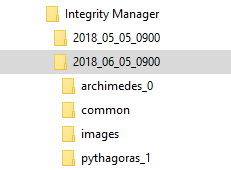
In a baseline-versus-project integrity test, the baseline folder is named baseline_0. In a baseline-versus-baseline integrity test, the baseline folder is named baseline_0 and the target folder is named baseline_1.
Each results folder contains a number of files containing the results of each report that is tested. These files are named <ID>_<GUID>.<ext>, where <ID> is the number indicating the order in which the report was executed, <GUID> is the report object GUID, and <ext> is an extension based on the type of file. The report results are saved in the following files:
- SQL is saved in plain text format, in the file
<ID>_<GUID>.sql.In a comparative integrity test, if you select the Save color-coded SQL differences to an HTML file check box, the SQL is also saved in HTML format, in the file
<ID>_<GUID>.htm. In this file, the SQL that is different from the SQL in the other project's version of the report is highlighted in red. - Grid data is saved in CSV format, in the file
<ID>_<GUID>.csv, but only if you select the Save CSV files check box in the Advanced Options dialog box. - Graph data is saved in PNG format, in the file
<ID>_<GUID>.png, but only if the report has been saved in Graph or Grid/Graph format. - Excel data is saved in XLS format, in the file
<ID>_<GUID>.xls, but only if you select the Save XLS files check box in the Advanced Options dialog box. - PDF data is saved in PDF format, in the file
<ID>_<GUID>.pdf. - Notes are saved in plain text format, in the file
<ID>_<GUID>.notes.txt. This file is created even if the corresponding report does not have notes.
- Only report results for formats requested in the Select Processing Options page during test setup are generated.
- SQL, graph, and PDF data are always saved if they are generated. Grid and Excel data are only saved if you choose to save those results during test creation. Notes are always saved.
- Integrity Manager also creates a file named
<ID>_<GUID>.serfor each report or document. These files contain serialized binary data that Integrity Manager uses when you open a previously saved set of test results, and are not intended for use by end users. These files are stored in the same folder as the test results.
Each results folder also contains a file called baseline.xml that provides a summary of the tested reports. This file is used to provide a baseline summary for baseline-versus-project and baseline-versus-baseline integrity tests.
To Open a Previously Saved Set of Test Results
- In Integrity Manager, go to File > Open Results.
- Browse to the location of the saved test.
- Select the
ResultsSummary.xmlfile and click Open.