Version 2021
Search
No PostgreSQL specific customizations were made for this feature.
The MicroStrategy metadata is a collection of all objects in a relational format and can grow extremely large over time. Search is an important feature for easy management of objects.
Search supports:
- Search for objects based on type, date, or ownership
- Options to search based on GUID
- Hidden or managed objects can be searched
- Export search results to a text file
- Search based on the locale of an object
- Sort search results
- Search results can be saved and used later
Search via MicroStrategy Developer
-
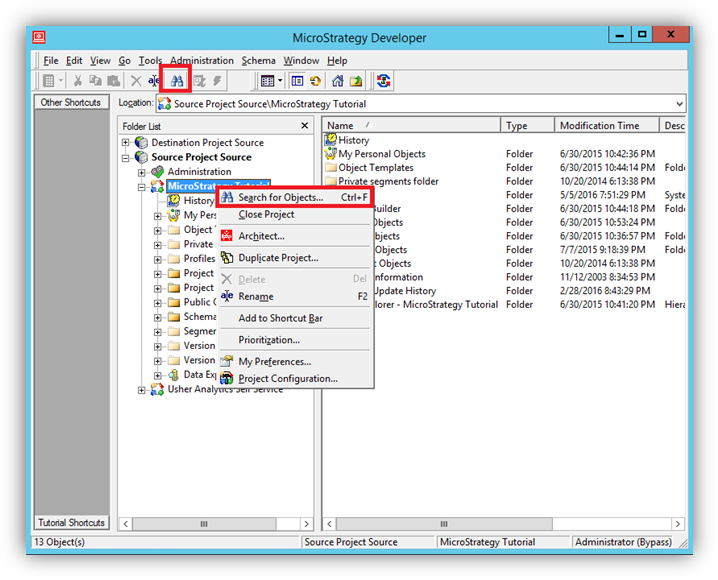
In Developer, right-click your project and select Search for Objects.
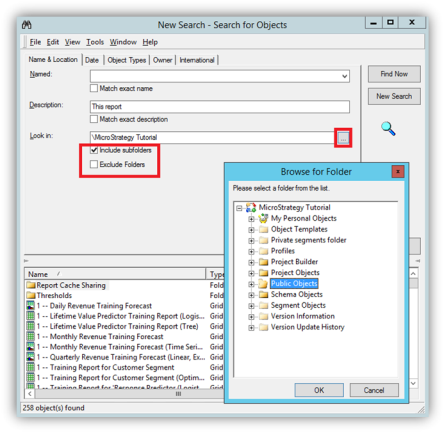
- In the Name & Location tab of the New Search dialog, enter a name and description for your search.
-
Click More (...) to choose a file folder to search in. Select Include subfolders to expand your search.
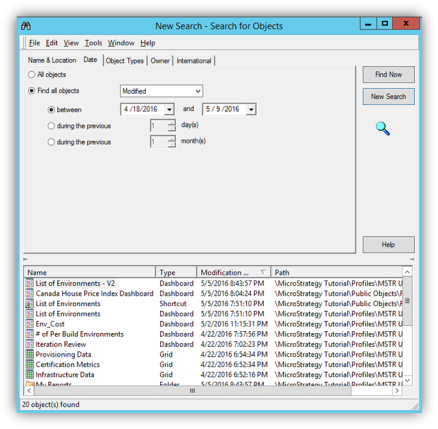
- Select the Date tab.
-
Click Find all objects to search for an object based on the date or time frame of when it was modified.
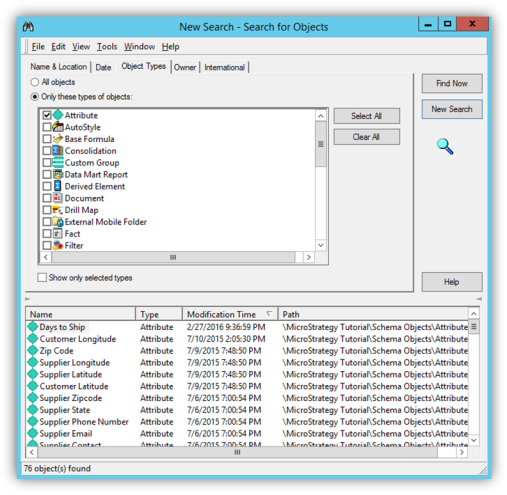
- Select the Object Types tab.
-
Select Only these types of objects to choose the specific object types to search for.
-
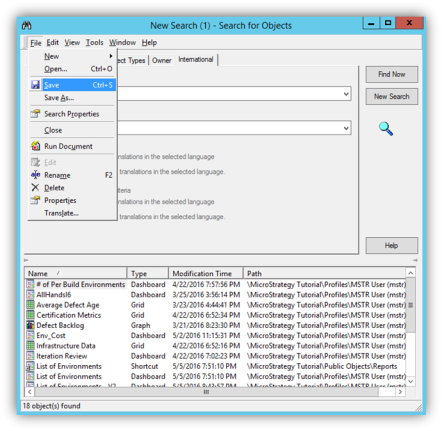
Click File > Save.
Search via MicroStrategy Web
- Log into a project in MicroStrategy Web.
-
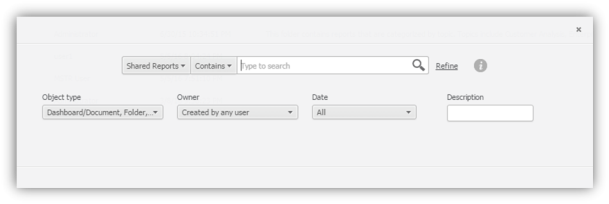
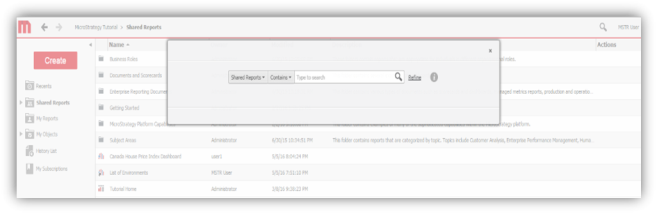
Click the search icon in the top-right corner.
-
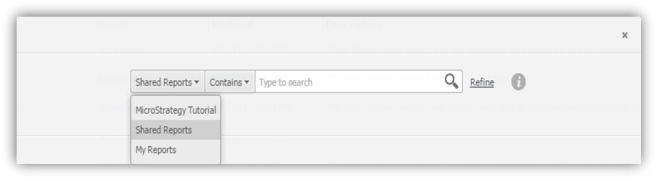
From the drop-down, select Shared Reports to choose a different location to search through.
-
Click the Contains drop-down to define how the search should operate. For instance, should it be an exact match or only contain the text entered in the search box.
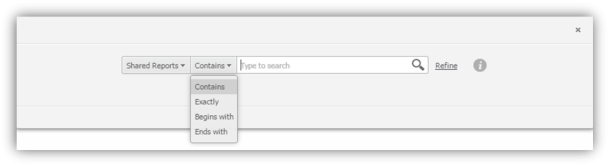
-
Click Refine. This allows you to search based on object type, owner, date, and description.