
Version 2021
Connect via DSN-less Driver
DSN-less connections to PostgreSQL are supported via MicroStrategy Developer and data import in Workstation and Web. DSN-Less connection supports both ODBC and JDBC drivers. JDBC drivers can only use DSN-Less connection.
MicroStrategy Developer
-
In Developer, open the Folder List.
-
Expand the server and go to Administration > Configuration Managers > Database Instances.
-
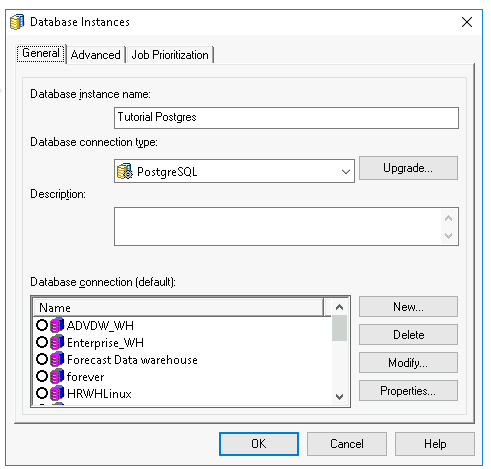
In the right pane, right-click within the white space and choose New > Database Instance.
-
Click New to create a new database connection. Do not choose any local system ODBC data sources.
-
On the Advanced tab, enter your connection string in Additional connection parameters. The connection string can be an ODBC or JDBC string.
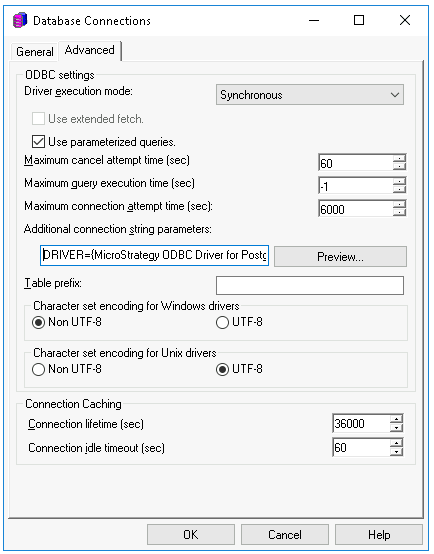 Examples of ODBC DSN-less connection strings with SSL enabled
MicroStrategy ODBC Driver for PostgreSQL Wire Protocol
CopyDRIVER={MicroStrategy ODBC Driver for PostgreSQL Wire Protocol}; HostName={hostname}; PortNumber={port}; Database={database};EncryptionMethod=1; ValidateServerCertificate=0;PostgreSQL Unicode (x64)
CopyDRIVER={PostgreSQL Unicode(x64)}; Servername={hostname}; Port={port}; Database={database}; DriverUnicodeType=1;UseDeclareFetch=1;Fetch=1000;SSLmode=require; -
Set the correct UTF-8 character encoding for the database connection. See KB483815 for more information.
-
On the General tab, configure and store credentials for the login.
MicroStrategy Workstation or Web
-
Choose Add Data
 > New Data.
 -
Select one of the PostgreSQL options and then an import option.
-
On the Import from Table dialog, click
 next to Data Sources.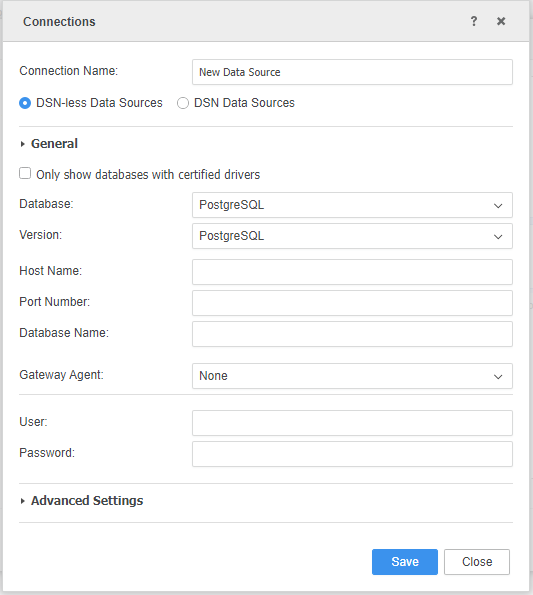
-
Complete the necessary fields.