
MicroStrategy ONE
Analyzing data on a map: Map widgets
Reports and documents can display information based on locations on a map, as shown below:
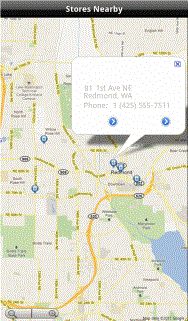
Map widgets can use Geo Location prompts to narrow the map area that is displayed. For example, when you answer the prompt with your current location, a Map widget can show locations that are within a given distance from your current location. For instructions to answer prompts on an Android device, see Filtering displayed data: Answering prompts.
Points of interest can be marked on the map. In the example above, the markers indicate stores in the area. A tooltip is displayed for a specific marker, to provide details about the selected store. To display a tooltip, tap on a marker.
Other ways to analyze data on a page may be enabled for your document, and include:
-
Selecting a different metric by tapping the header in the top right.
-
If using Android 3.x or higher, zoom by performing a pinch.
-
Switching between Map, Satellite, Terrain, and Hybrid views by tapping the Menu
 button at the top right corner of the screen, and then selecting the appropriate option.