
MicroStrategy ONE
Allowing users to copy text from documents on iOS devices
On an iPad or iPhone, a user can copy text from a document, by tapping and holding the text to copy. If zoom is disabled, a user can also double-tap the text.
If the document uses a document template other than an iPad or iPhone template, the document may use a Detail section. The Detail section of a document displays one row for each row of data in the document's dataset. (For descriptions and examples of the different document sections, see the Designing and Creating Documents chapter of the Report Services Document Creation Guide.) If the text is displayed in the Detail section, a user taps the text to copy.
For example, a document contains the heading "List of Regions" in the Detail Header section, and the actual regions in the Detail, as shown below:
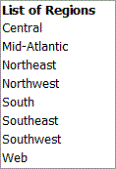
Zoom is disabled in the document, so double-tapping the word Region displays a pop-up menu. The user can copy the selected text (Region), or select all the text in the text field (List of Regions).
When a user taps Northeast, which is in the Detail section, the word Northeast is selected. The pop-up menu allows the user to copy the selected text (Northeast).
For a document, you can enable copying for the whole document, and also enable or disable copying for a specific text field, as described in the steps below. This means that you can enable copying for all text fields on a document, but specify that a particular text field cannot be copied.
To allow users to copy text from a text field in a document
-
In MicroStrategy Web, open the document in Design Mode.
-
To enable copying for the whole document, follow the steps below:
-
From the Tools menu, select Document Properties. The Properties and Formatting dialog box opens.
-
From the list of categories on the left, under Document Properties, select Mobile.
-
To enable copying from all text fields on the document, select the Enable copy for text check box.
-
By default, all text fields use the document-level setting to determine whether copying is enabled. You can enable or disable copying on a specific text field by following the steps below:
-
Right-click the text field, and select Properties and Formatting. The Properties and Formatting dialog box opens.
-
From the list of categories on the left, select General.
-
Select one of the following:
-
To enable copying on this text field, select Enable copy for this text.
-
To disable copying on this text field, select Disable copy for this text.
-
Click OK to save your changes and return to the document.
Text sub-selection is only supported outside of the Detail section. This means that if the user selects text in the Detail section of the document, all the text in the Detail section is selected. A user cannot select a single word, as he can in other document sections. The example in Allowing users to copy text from documents on iOS devices demonstrates this.